Fee Payment
Our Fee Payment system is one of the simplest and most efficient modules. One can manage any form of fee payment from our simple but comprehensive Fee Payment module.
SELECTING STUDENT FOR PAYMENT
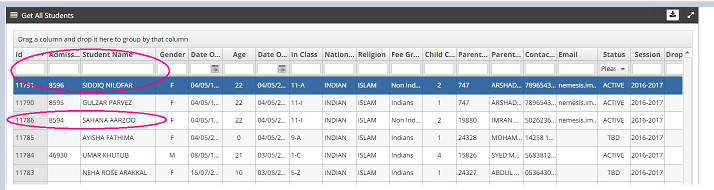
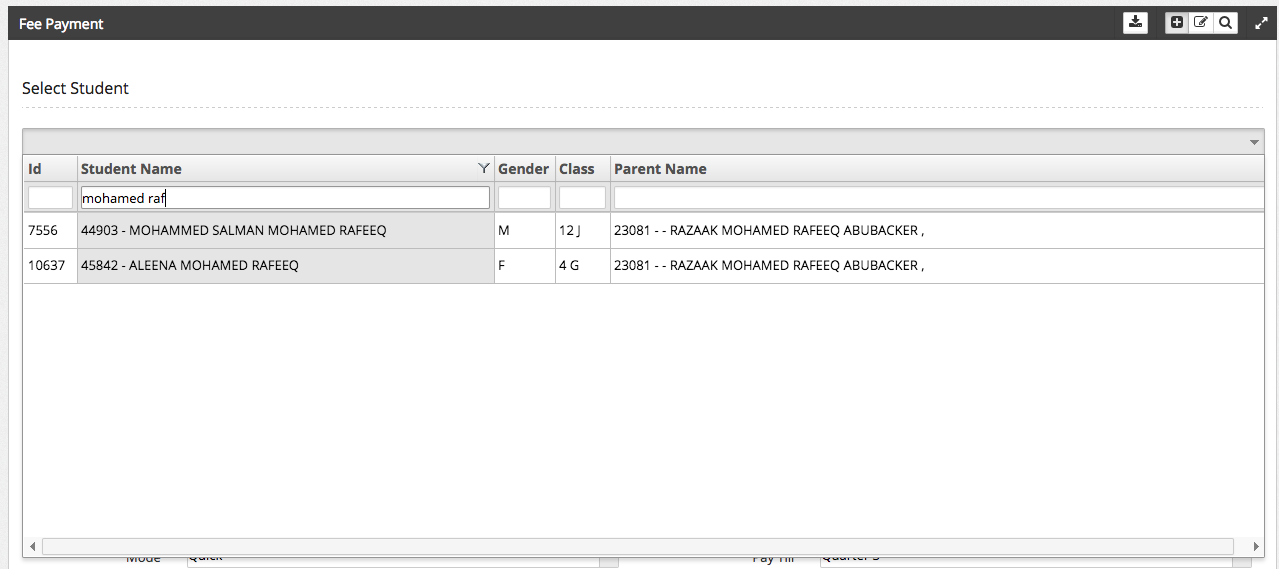
Fee payment starts with finding the right student. Many a times the fee counter finds it difficult to find the right student by searching using name or other details. Most of the times the parent are not aware of the admission number either. Many parents only remember their mobile numbers as a reference to identify the student.
To make things simple, we have provided a drop down report which will let you search through your entire student database instantly and find the right student by using various search parameters. This report is like an excel and is really intuitive and easy for the end user to quickly find the right student.
DIFFERENT MODES OF FEE PAYMENT
Fee payment currently has 2 modes through which payment can be done
- Quick - Pay all siblings in one go (Default)
- Normal - Pay one student at a time
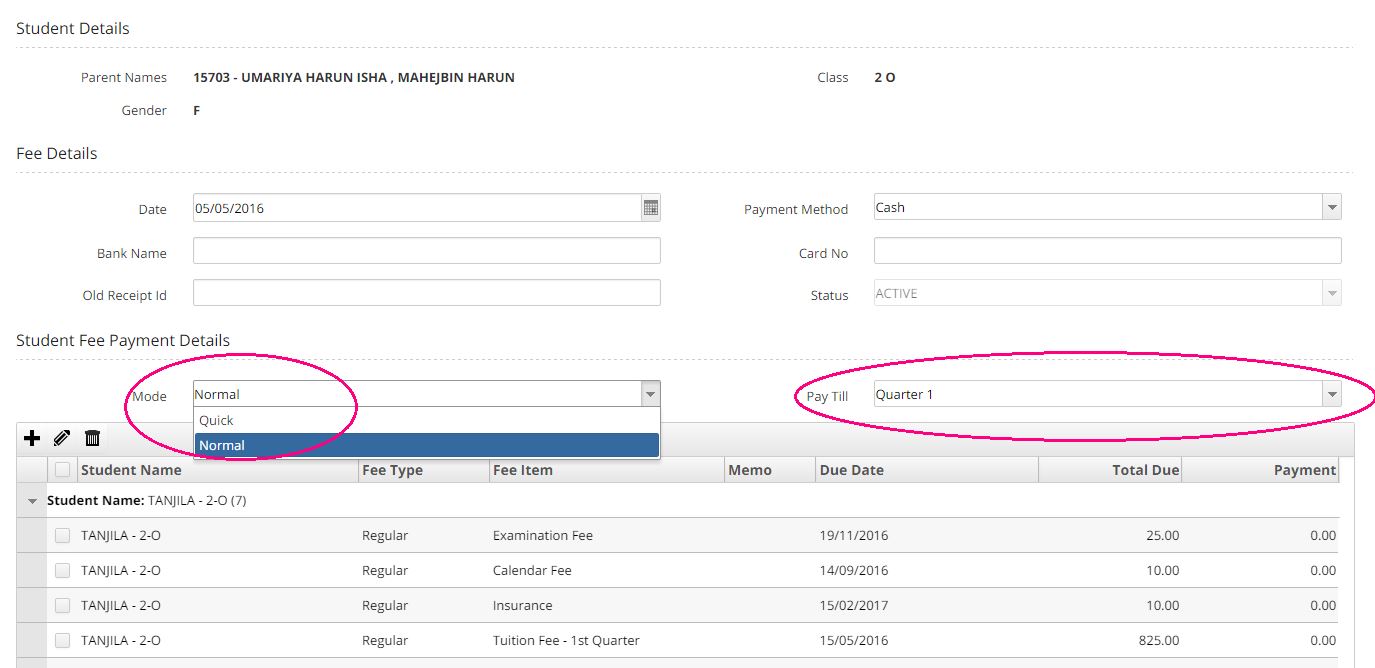
SINGLE STUDENT (MODE = NORMAL)
Fee payment has 2 modes of payment - Normal and Quick modes. The default mode is the Quick Fee Payment mode which allows you to pay for multiple siblings at a time.
If you wish to see only a single student's data then you can change the mode to Normal.
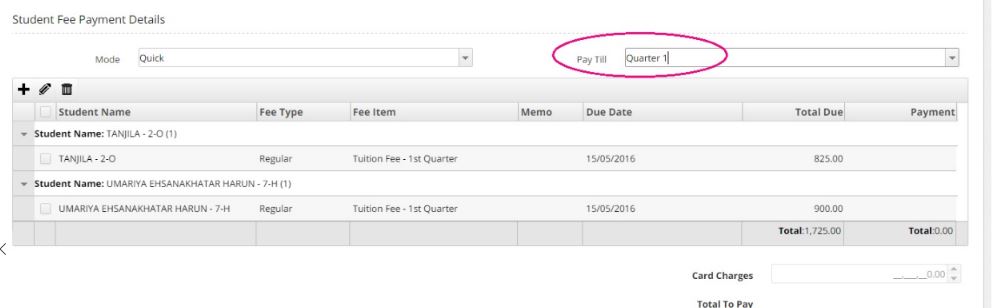
At any time, you can decide up to which month/quarter you want to pay the fee by choosing an appropriate value from Pay Till drop down as shown below**.**
ALL SIBLINGS TOGETHER (MODE = QUICK)
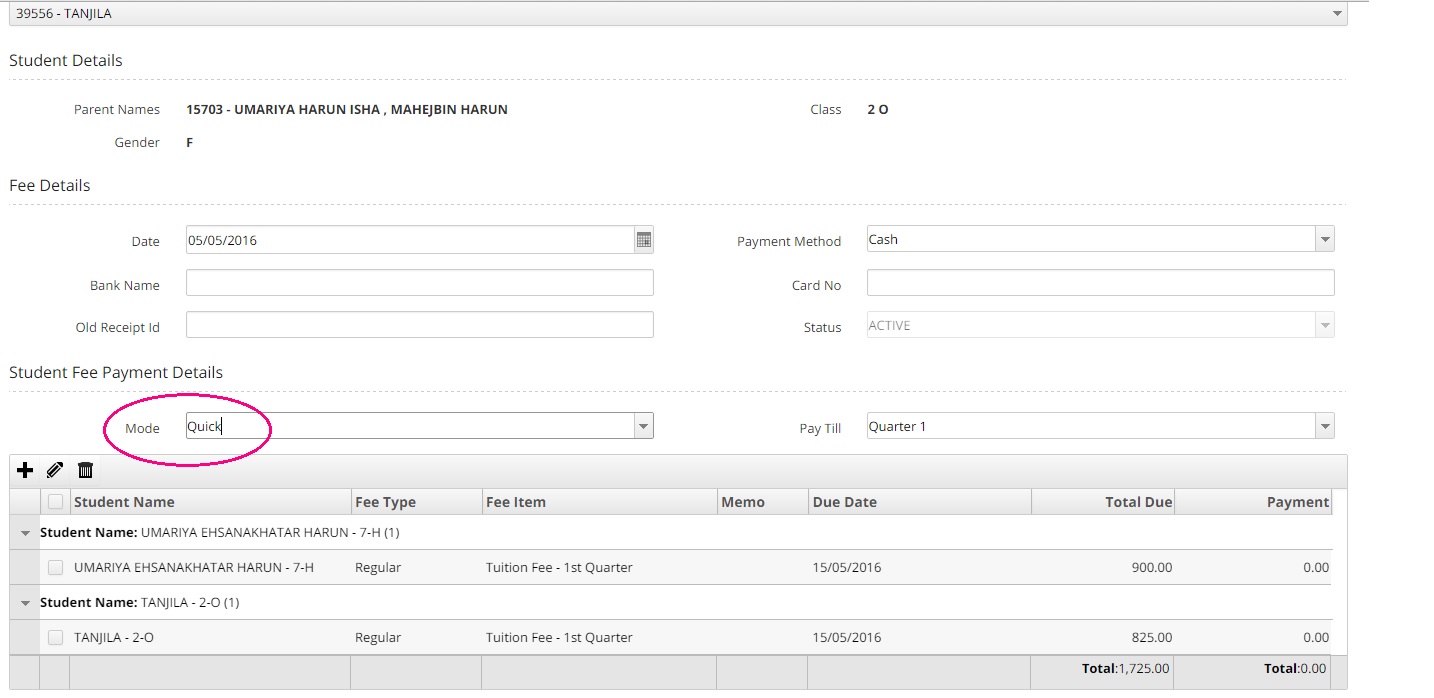
If your school has proper link among the siblings and the child code is managed for them, then the Quick Fee Payment mode will allow you to make fee payment for all the siblings in one go.
At any given time, you can shift between the Quick and Normal Fee Payment mode. If you want to make fee payment for all the children of the same parent, then you can change the mode from normal to quick along with the quarters till which you want to pay the fee.
FEE PAYMENT FOR A PARTICULAR QUARTER
Fee payments can be done by selecting the quarters/months to pay from the Pay Till drop down.
- Quarter 1
- Quarter 2
- Quarter 3
- Quarter 4
When any quarter is selected, all the pending fee heads upto the selected quarter would be shown. You could then just check the head you want and do the payment.
FEE PAYMENT FOR ALL QUARTERS
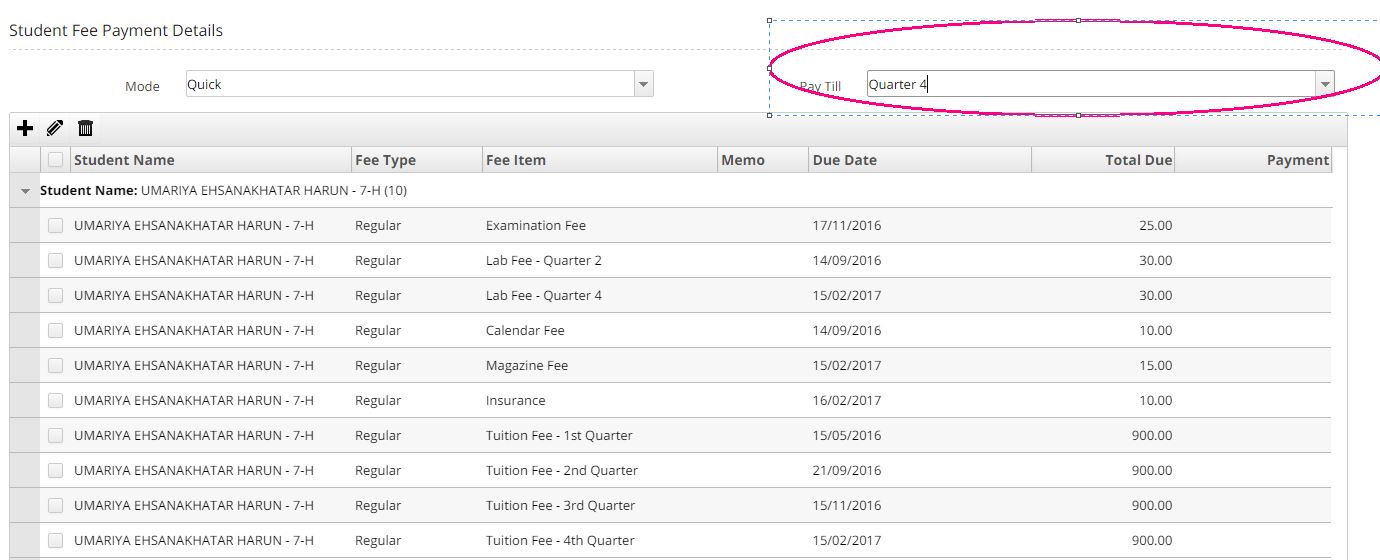
Fee can be paid at single shot for the entire year by selecting the final quarter i.e., the final quarter here is quarter 4. Once it is selected, all the other quarter fee items will be shown (Quarter 1,2,3,4). You can then pay for all the quarters in one shot by selecting the check box of all the items.
MAKING PAYMENT
Making payment is very easy. To pay the entire amount for a given fee head, you can just check the checkbox after the Payment field would be updated. You can check multiple heads based on what the parents are requesting to pay.The Total field is also automatically updated as and when you select a fee head.
You could also select a given month/quarter and click the top most checkbox to pay all the items.
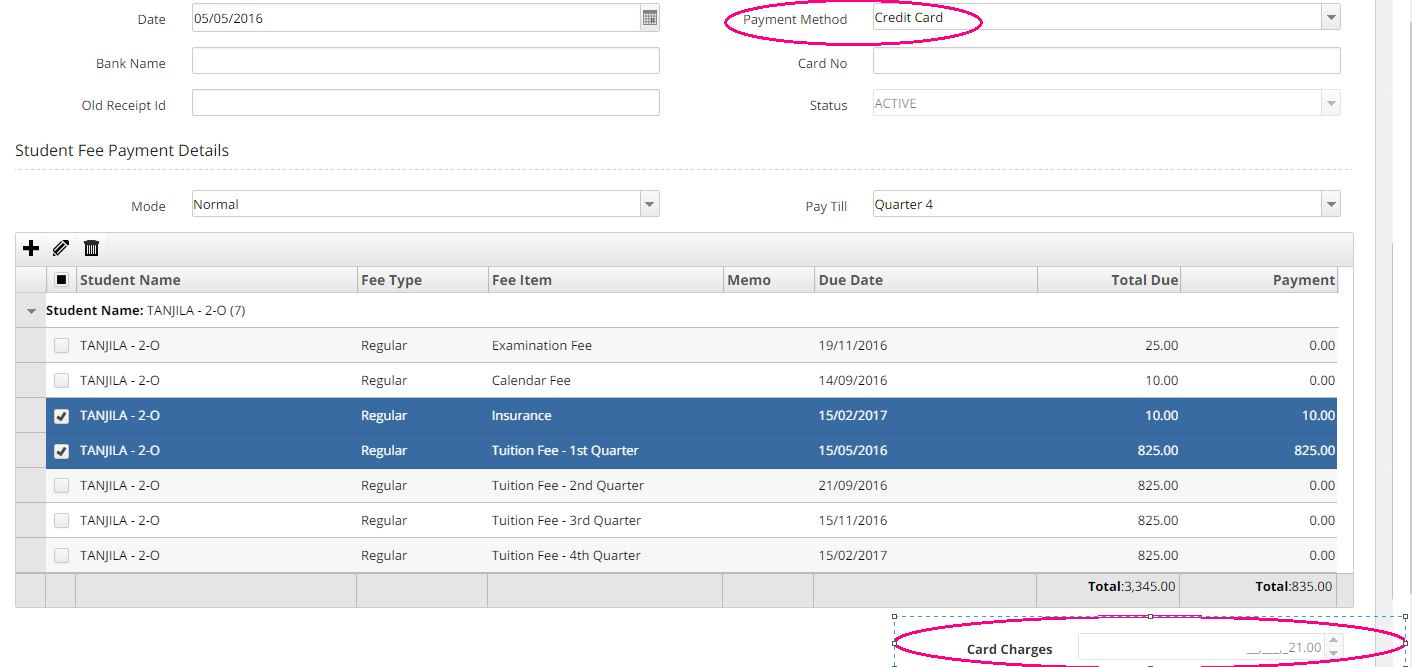
If you need to make a partial payment, you can simply click on the payment cell and type the desired amount the parent is paying. The balance would carry over and when the next time same student is selected for fee payment, the balance amount to pay across the partially paid fee head will be shown for the parents to pay.
CHECK BOX TO PAY FULL FEE FOR A STUDENT
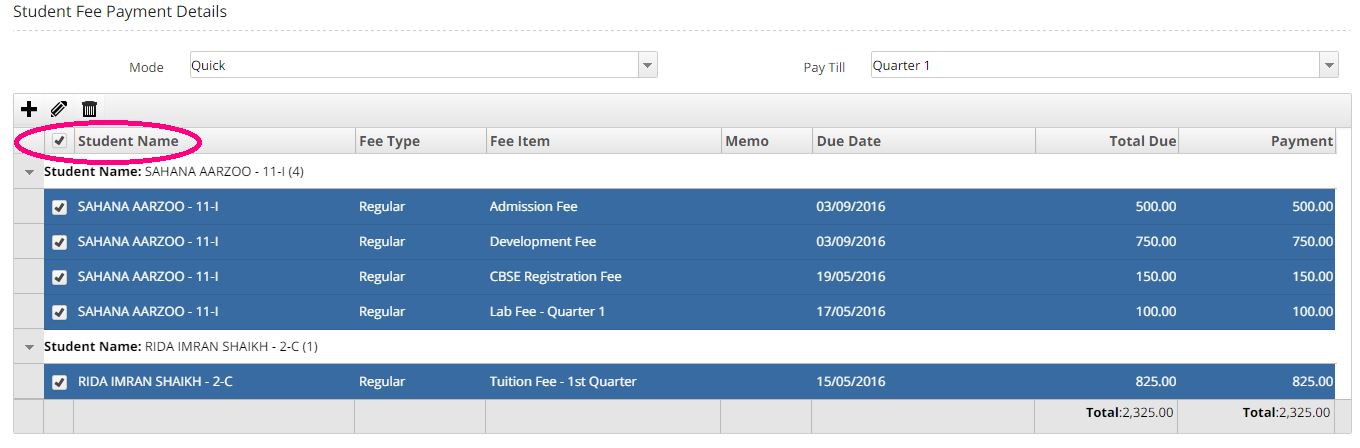
Fee can be paid for student at a single shot with the help of check box provided.
When the student name check box is checked,then the fee corresponding to the selected student will be shown based on the number of quarters selected and the modes respectively.
LATE FINE
Late fine will be collected from the students who have failed to pay the fee on or before due date.The late fine amount will be automatically calculated and shown as per the criteria of the student.
CHARGES APPLIED FOR CARD PAYMENTS
The fee payment can be done in different ways by using either cash/card/cheque/online. If the payment is done using Card, then the necessary charges should be paid along with the fee generated. The charges are auto calculated and would show in the Card Charges box.
FEE ADJUSTMENTS - NEEDS CHANGE
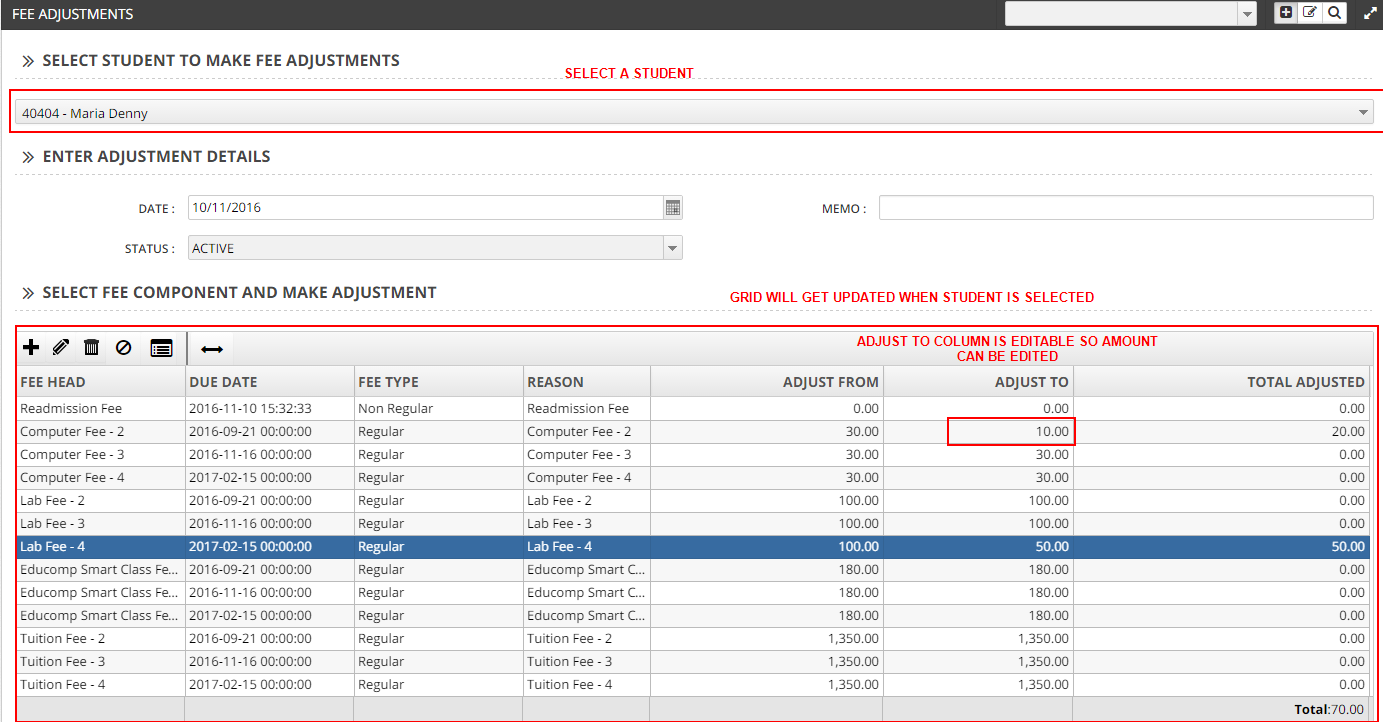
Partial Fee Payment is nothing but the fee adjustments. Fee adjustments are made possible only if the student has done any fee payment before.
To do a partial payment, first goto the Fee Adjustments screen select the student to make fee adjustments. Select the fee item from Item Types Id drop down box for which adjustment has to be done.
Adjustments in fee can be done using Select fee component and make adjustments label. Select the fee item and give the Adjust_to amount and the reason behind the adjustments made.
REGULAR AND NON REGULAR FEE
Fee heads are created and managed in Fee Component Setup Screen (Covered in fee configuration document).
Fee components are broadly divided into two types
- Regular (or configured fee - driven by fee configurations)
- Non-Regular (any other fee, used in adjustments or spot fee collections, its not configured and is used adhoc)
The Regular fee in general is driven by the Fee Configurations done. They come automatically on selecting the student in the Fee Payment screen based on the Class, and fee group of the child. They are configured in the Fee Configuration screen and in general no manual intervention is required by the user for these components.
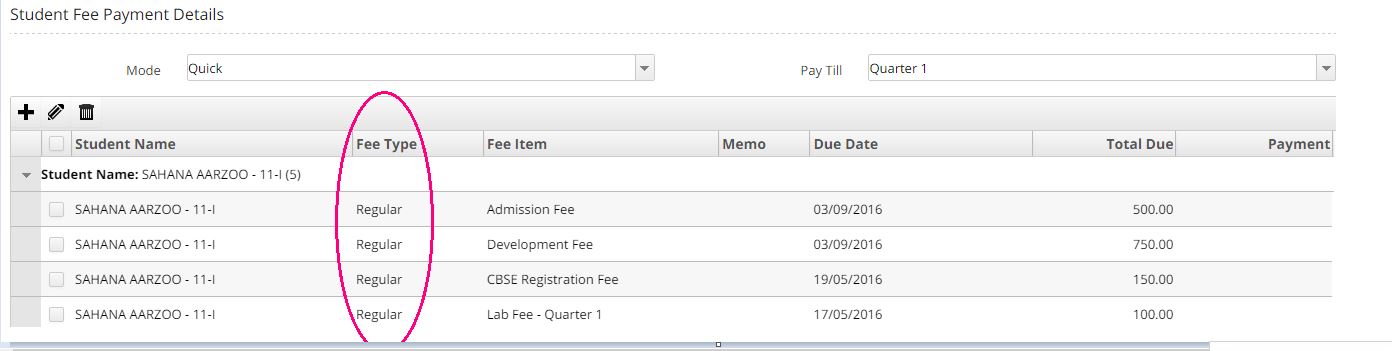
The Non-Regular fee indicates the fee which is not regulated in academic fee portal.These types of fee includes spot fee,examination fee for the student(retest exam). They are fee which are not configured at class/fee group level and are collected from the student on case to case basis.
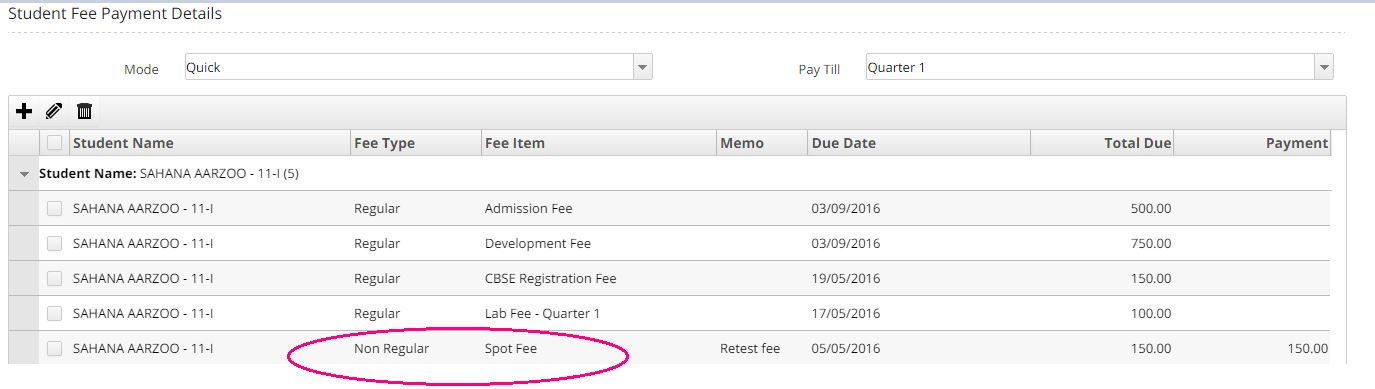
Non Regular Fee Via Fee Adjustments
Non regular fee are usually used along with the Fee Adjustments module. E.g. If you want to get some extra fee/fine from a student the next time he comes to pay fee, you can just go to the Fee Adjustments Screen, select the student, enter the amount and reason for the amount. The next time the parent comes to pay the fee for the student, the new fee you have put in adjustments would be shown in the Fee Payment Screen with the reason, as you can see in the image above.
In this way you can enter adjustments and leave it to the fee department and not worry about any adhoc fee and collect whatever is listed in the Fee Payment screen.
Non Regular Fee Directly Via Fee Payments
The fee payment in charge can also add any non regular fee and enter the amount and collect the payment as well. Simply by clicking the + icon on the grid, you will have the option to select Non Regular Fee head. You can enter the amount and collect it.
EDITING FEE NOT ALLOWED WITH REASON
Fee can’t be edited when the payment for a particular quarter is already done.
Once the fee is paid for any quarter then the editing of that particular fee item is not possible. This is done to avoid hoax which usually happens quite frequently.
If any mistake is made during fee collection, the staff (if he has access) can only delete or request the appropriate staff with access to delete the fee item in question and create a new one. But he cannot edit the paid fee.
Deleting a fee would just VOID it and not delete the entry. This will leave a audit trail and would be available in reports to know how many fee have been cancelled today. They are also available in the Fee Payment SAG coloured boxes on top of the reports
DELETING FEE
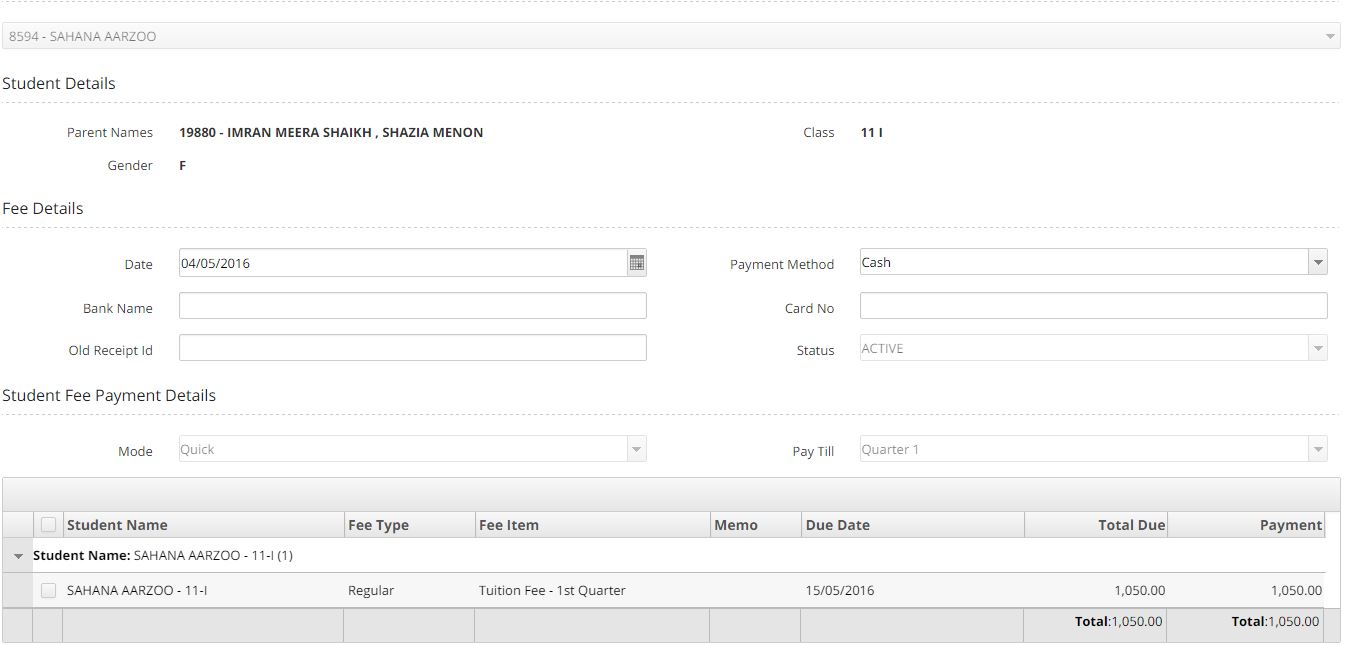
As mentioned above, fee can only be deleted and cannot be edited. Deleting a fee removes all accounting postings and updates its status as VOID. This will leave a audit trail and would be available in reports to know how many fee have been cancelled today. They will also be available in the Fee Payment SAG coloured boxes on top of the reports

FEE PAYMENT FOR A NEW STUDENT
NEW STUDENT
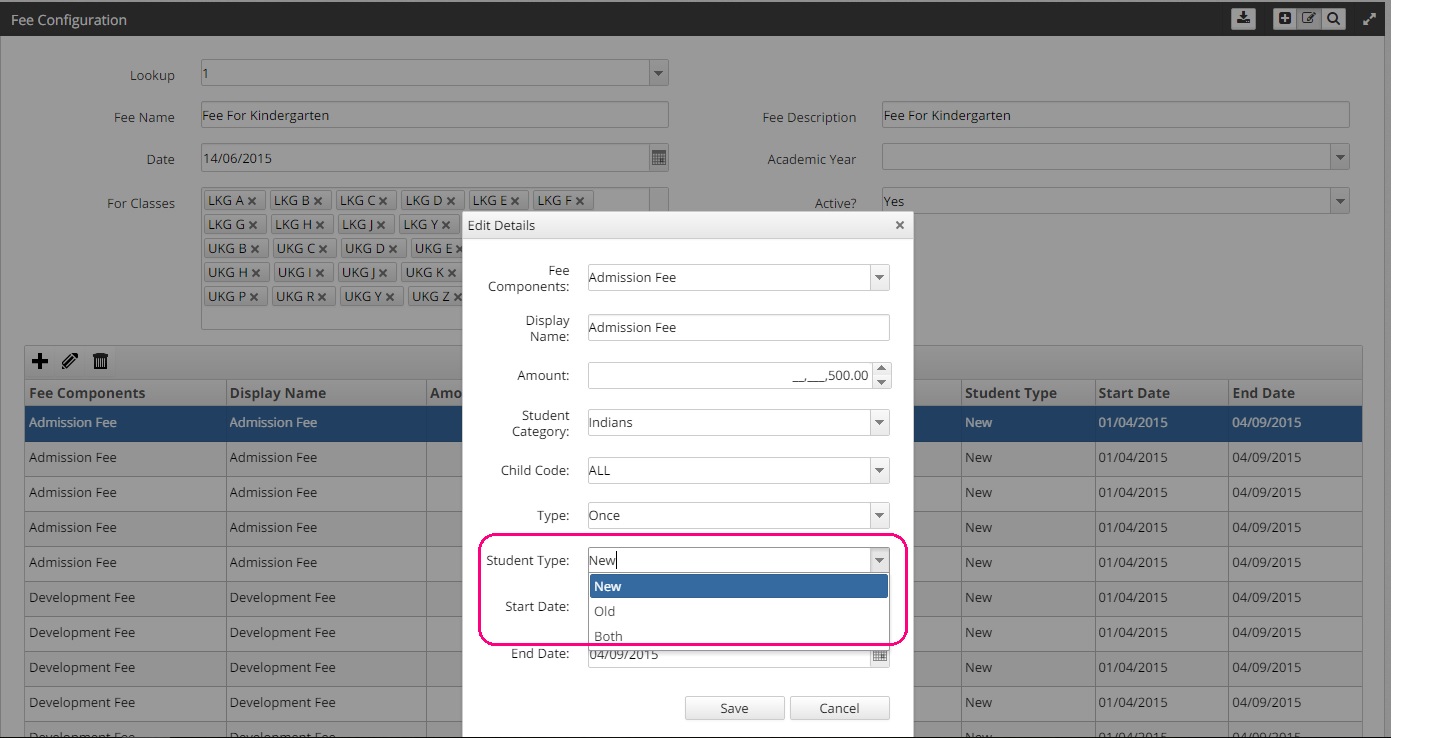
Whenever a fee is configured as NEW in the fee configuration (image below) then that fee will only be visible to new students only and will not be visible for any other type of students. More information about fee configurations would be present in the Fee Configuration document.
ADMISSION NUMBER GENERATION
Whenever there is a new admission and if the student is selected for a particular class, then the details of the students will be populated in the student profile but without the admission number. These students will not be ACTIVE, they will have status as TBD. These students will get their admission number once the fee payment is done by this student.
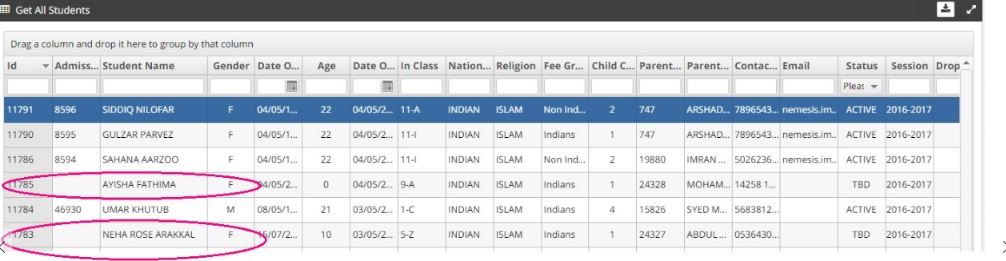
Once the student's fee is paid in the fee payment screen, the admission for that student is completed and the admission number is assigned to this student automatically. The Status is also marked as ACTIVE. You can also verify the academic session the student took admission for in the Session column.