
Generate Payroll:
This is where the actual Payroll generation happens i.e. all accounting transactions and payments to the employees
How to generate payroll?
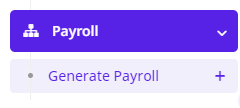
Goto Payroll>> Generate Payroll>>Create New
-
Payroll is generated on monthly basis.
-
Select the month to generate Payroll. Start Date and End Date can be changed according to the payroll date followed in the company or organization.

-
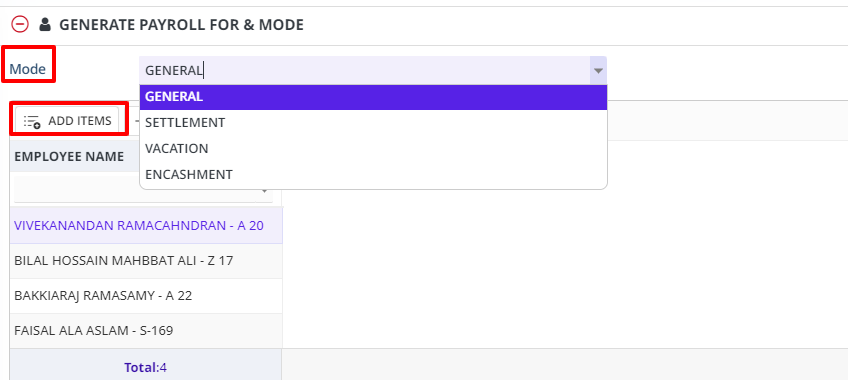
In the next tab, select the type of Payroll being generated from the dropdown list and add the employees for whom the selected payroll is to be generated.
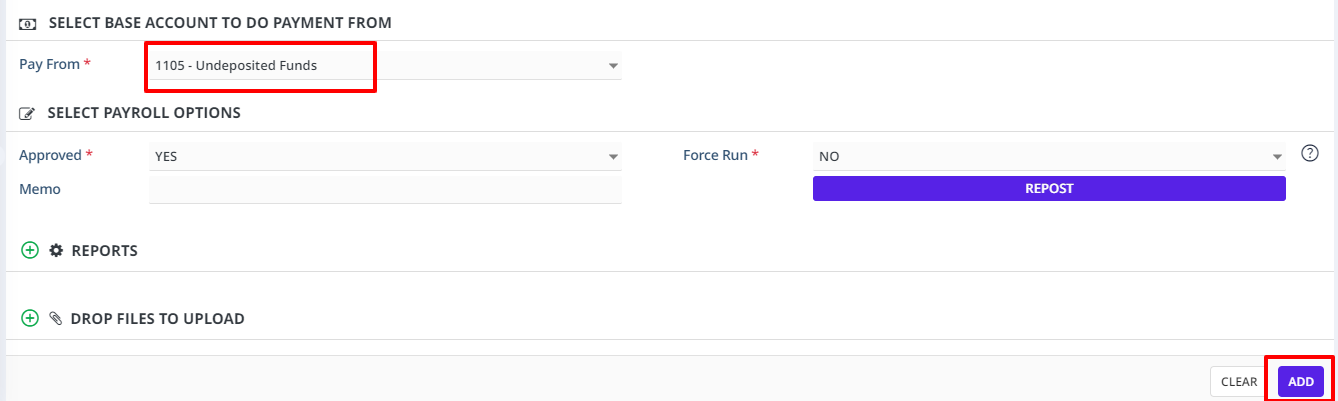
- Select Account to pay from.
- Click Add Button.
- This will generate all Pay Slips (Can be seen in Payroll -> Payroll Run Details)
- All Payslips are again Approved = N
- Any changes to the payroll like Add/Remove Employees from the payroll, pay adjustments, attendance corrections, etc., can be made before the payroll is approved and the payroll can be re-run for the changes to be saved.
- Make the corrections like Adding or removing employees from the grid , changing attendance, Adding adjustments, etc
- Payroll -> Generate Payroll -> Double Click on the generated payroll
- Choose Force Rerun -> Yes and save
- This will delete all the unapproved payslips and recreate them.
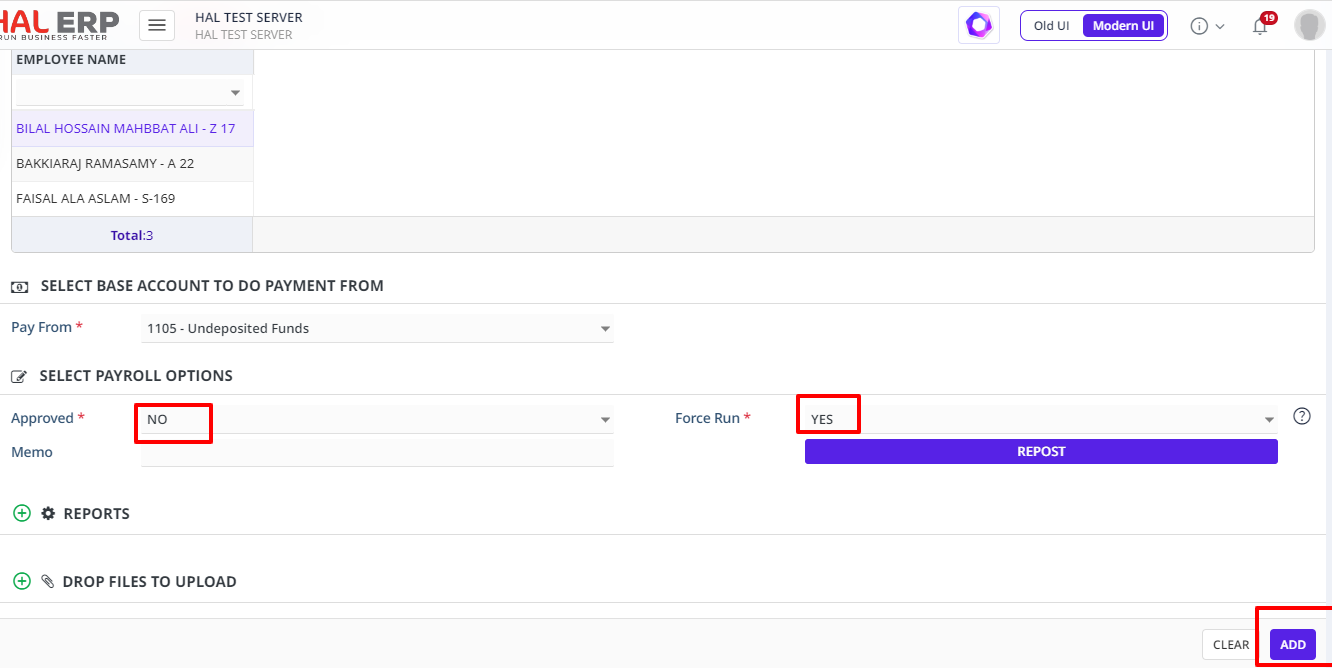
- Once check all the employees and confirm everything is ok then choose Approved = Y in Generate payroll and save
- This will make all the accounting transactions and also complete the payroll process.
Note:
- To edit a generated Payroll, Select Force Run as Yes and Click Save. This will delete all the unapproved payslips and recreate them.
- Force ReRun and Approval cannot be done at the same time.
- When the payments are approved, the Payroll Run cannot be deleted.
- Approved Payroll Run cannot be edited or deleted.
- If Pay From = 'Salary Payable' Account & Approved = Yes is selected, then it means Payroll is Approved & Payment Status of Employee will be UNPAID as its accrued. Now to Pay, HR -> Payroll Bulk Payment Module has to be used. (To configure this salary payable account, send the "Salary Payable Account" via ticket to support@halerp.freshdesk.com & also "Payroll Bulk Payment" option should be in scope)
- If Pay From = Any Bank & Approved = Yes, then this means Payroll is Approved & Payment Status will also be changed to PAID.