
STUDENT TC
The Student TC module let you Apply, Track and Issue TC to student. Student TC module does the following when TC is applied.
- Check if the student has any dues and notify
- Mark the student as INACTIVE if confirmed
- Automatically Change the child code of the siblings (Applicable if your school follows a child code base system)
- Make necessary fee adjustments for siblings so that the right fee (as per their new child code) comes form the next quarter
- Remove student from Transport allocation if applicable
- Lets you print Original and Duplicate TC
Note that the TC module and print would be customised as per the School's requirement.

APPLYING TC TO A STUDENT
To apply TC for a student
Goto Students→ Student TC Issue → Create New
Select a student from the dropdown to apply for TC. By Default, only ACTIVE students would be shown in the student dropdown.
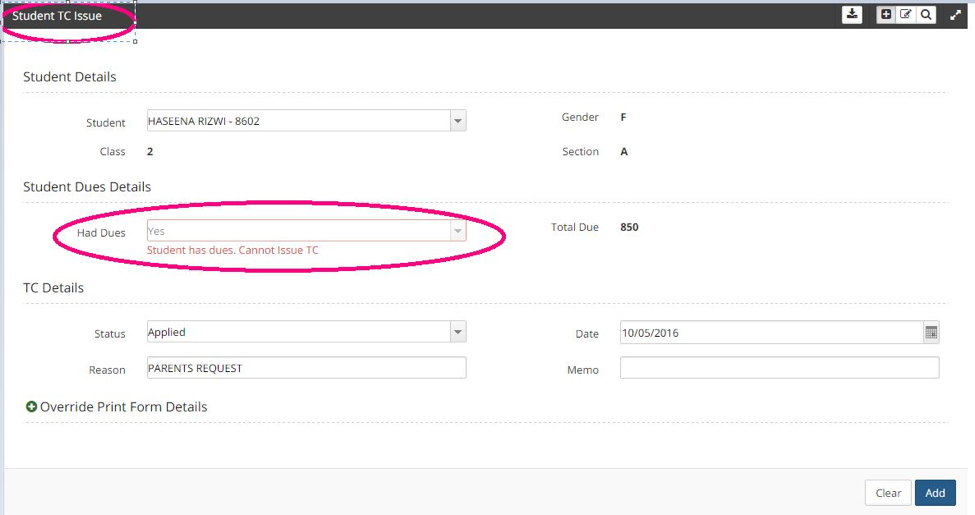
On selecting a student, the student's details are shown, apart from the student details, if the student has any outstanding fee dues, then the details are shown in the Student Dues section.
To Issue TC the student should not have any fee dues. Only after the payment of all fee dues, the Student is eligible to apply for TC. Refer the screenshot below.
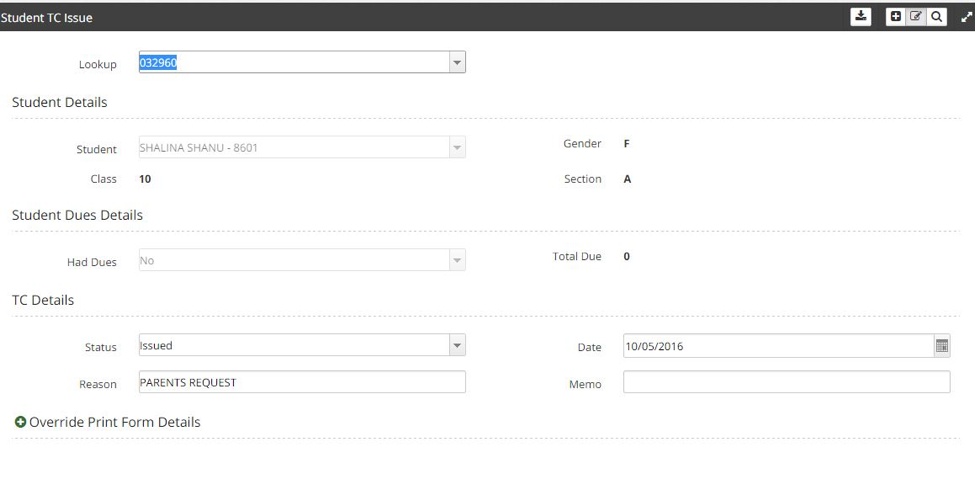
If the selected student does not have any Fee Dues, Had Dues field shows No as shown below and you can proceed to pay the pay.
TC STATUS
A TC can have 2 status. ISSUED and APPLIED.
APPLIED
When a request for the TC comes you can record it with status as APPLIED. This is not mandatory but if your school has any specific exit procedures, in such cases, the TC department can record the TC as Applied which can later be updated and issued by the concerned person.
Until the TC Status is set to ISSUED, any changes mentioned in the beginning of the document will not take place and you are free to make changes in the TC.
ISSUED
When the TC status is set as ISSUED, the following changes happen in the System
- The student is marked as INACTIVE
- His/Her sibling's child code is adjusted and necessary fee postings are done to reflect the updated fee from the next quarter (Applies only if your school follows child code based fee system)
- Student is removed from any Transport Allocation if applicable
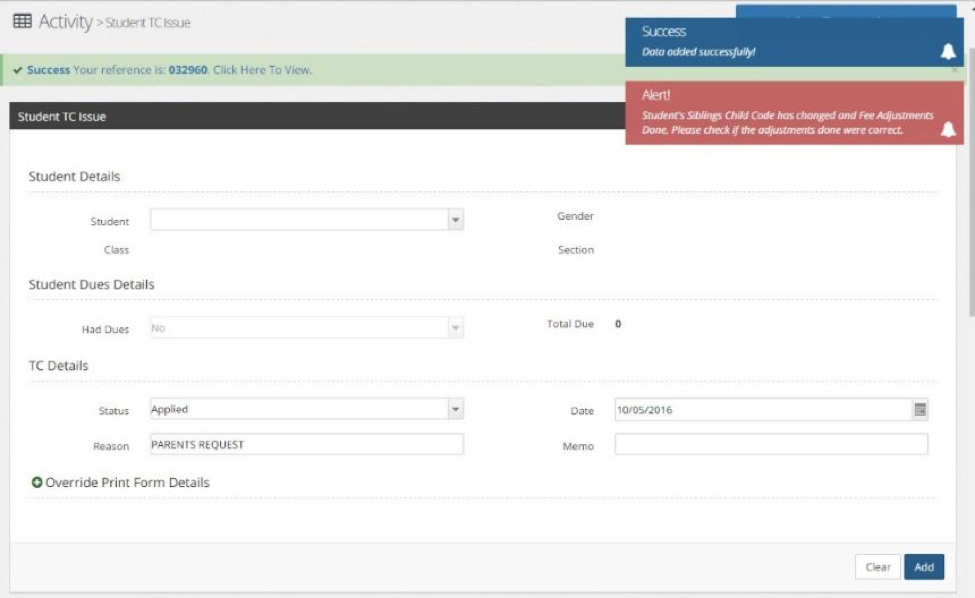
To verify the changes done by the TC module, you can Goto→ Students→Student profile→ Check student based on any one criteria like GR No,Parent ID. As you can see below, the student would be marked as inactive with child code updated

EDITING TC INFORMATION
At any time, you can edit/update the TC information and also correct any mistakes before taking a print out of the TC.
Goto→ Students→ Student TC Issue→ Double click on any one of the student and the selected TC will be as shown below.
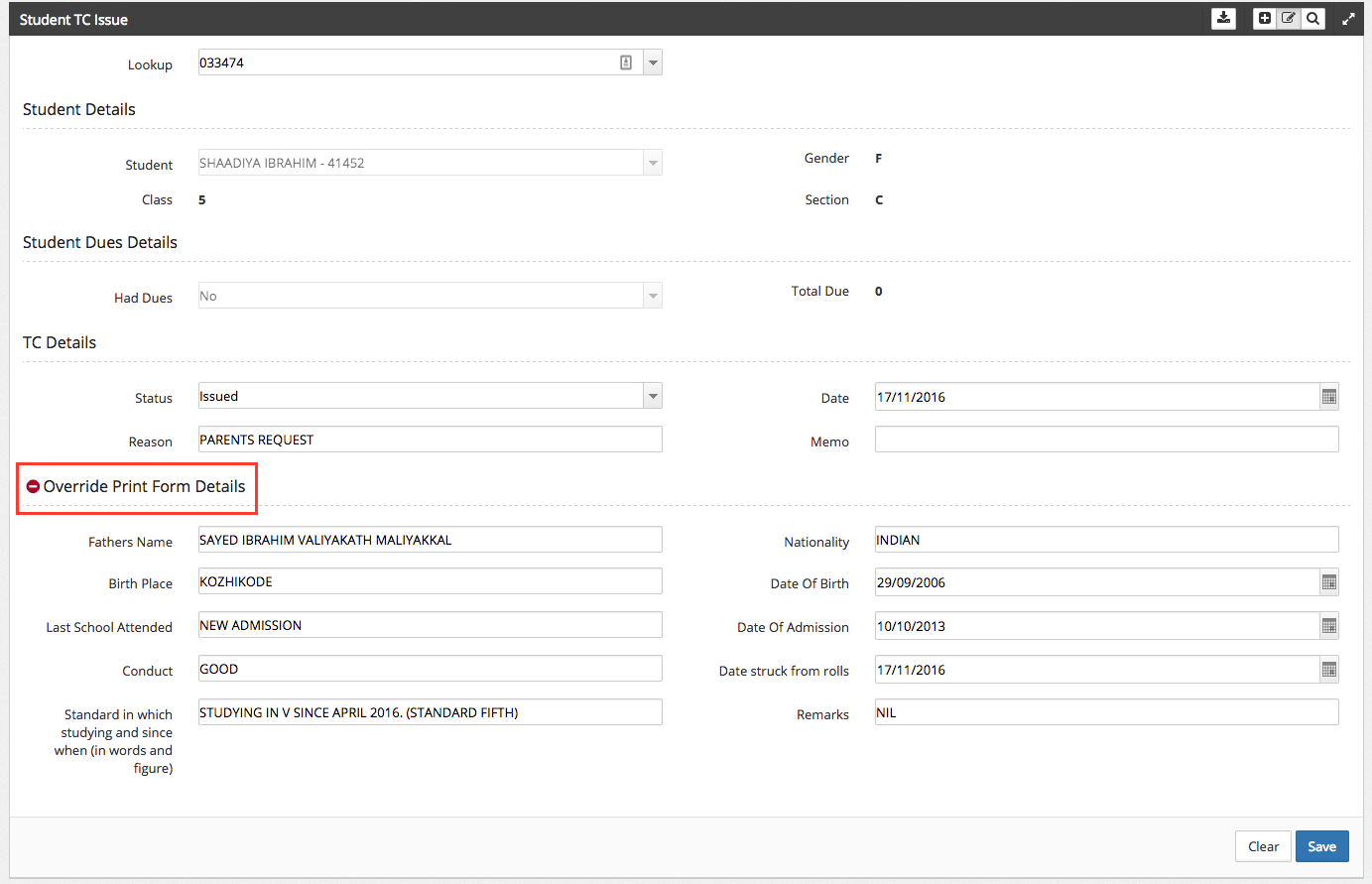
By clicking on the OVERRIDE PRINT FORM DETAILS, you will have the option to make any correction/changes. These changes are reflected when you take a print out. Based on the school's need, this form would be customised so that all the information in the print can be easily updated from here.
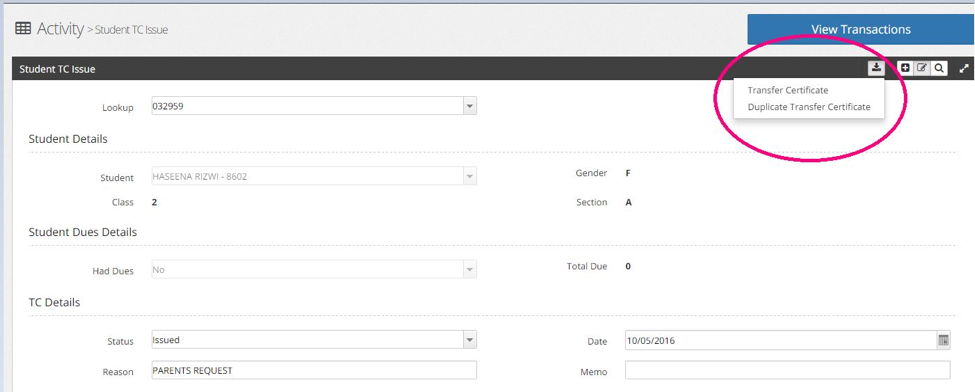
TC can always be downloaded from the download button as shown below. You also have the option to print a Duplicate TC.
DUPLICATE TC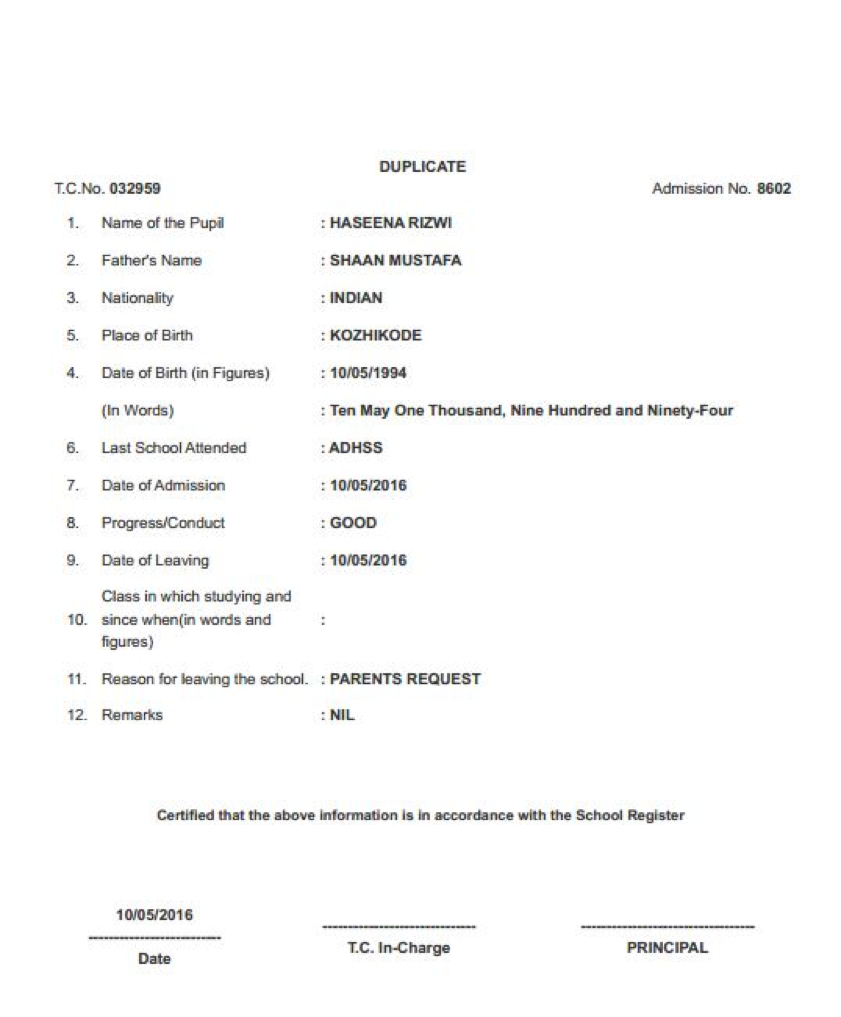
ORIGINAL TC
**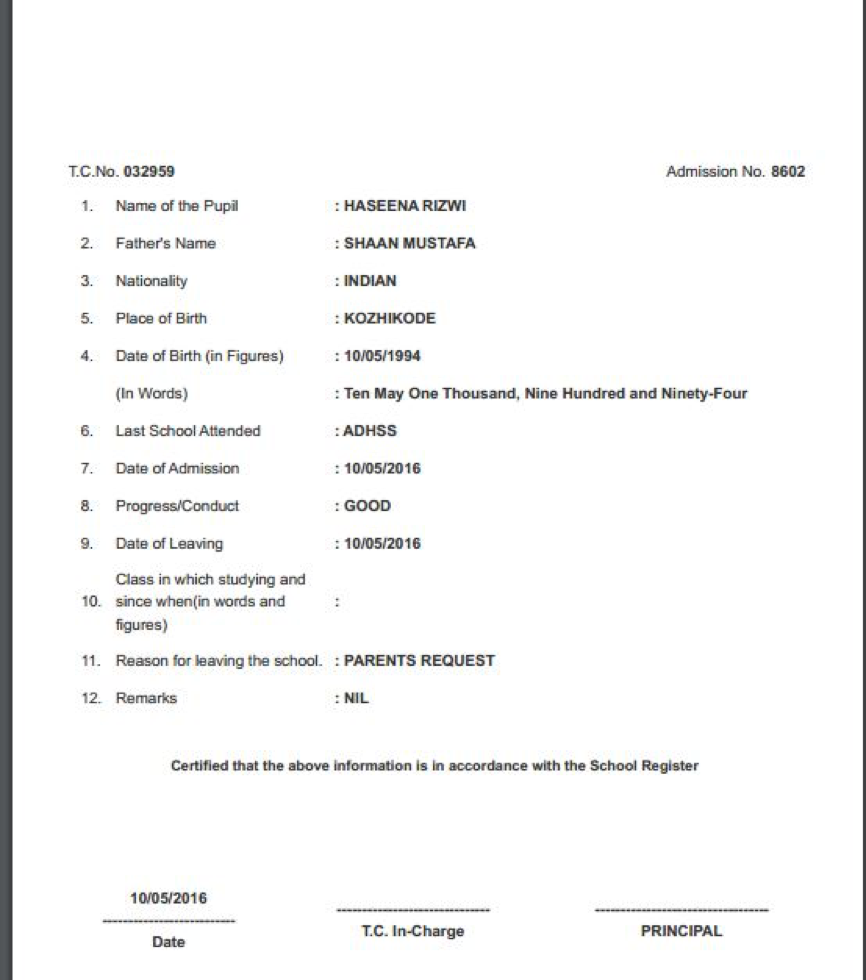
As mentioned before, these prints and screens would be customised as per the school's requirement.**