Purchase Returns:
To create a Purchase Returns, Click Purchase -> Purchase Returns
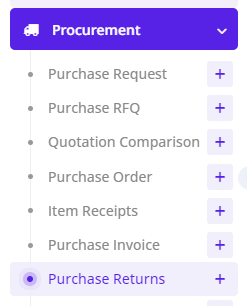 Purchase Returns can be created in two ways
- Purchase Invoice
- Item Receipt
**++Creating Purchase Returns using Purchase Invoice++ **
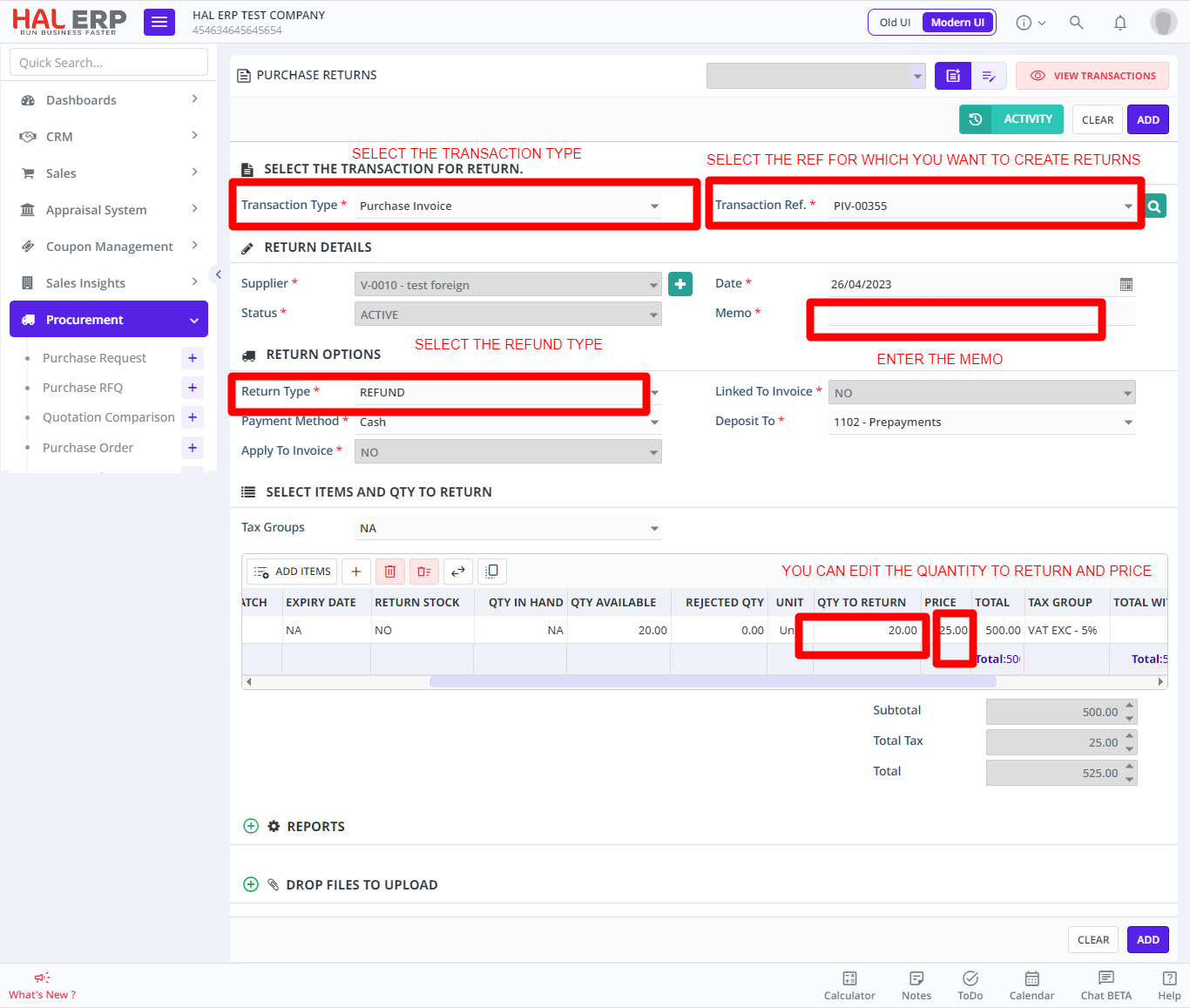
- Select the Transaction type as Purchase Invoice
- Select the Transaction Ref. which is nothing but the Purchase Invoice for which you are going to Create Purchase Returns
- Once you select the Transaction Ref., all the Items along with the Tax applied for that particular Purchase Invoice will automatically populated in the Grid Below.
- Enter the Memo
- Select the Return Type i.e. Refund / Credit If REFUND is selected then linked to invoice will be set to No by default, and if you select DEBIT then you will have option to Linked to Invoice YES/NO.
- You can edit the Qty to Return and Price, to match with refund amount which you are going to get.
**++Creating Purchase Returns using Item Receipts++ **
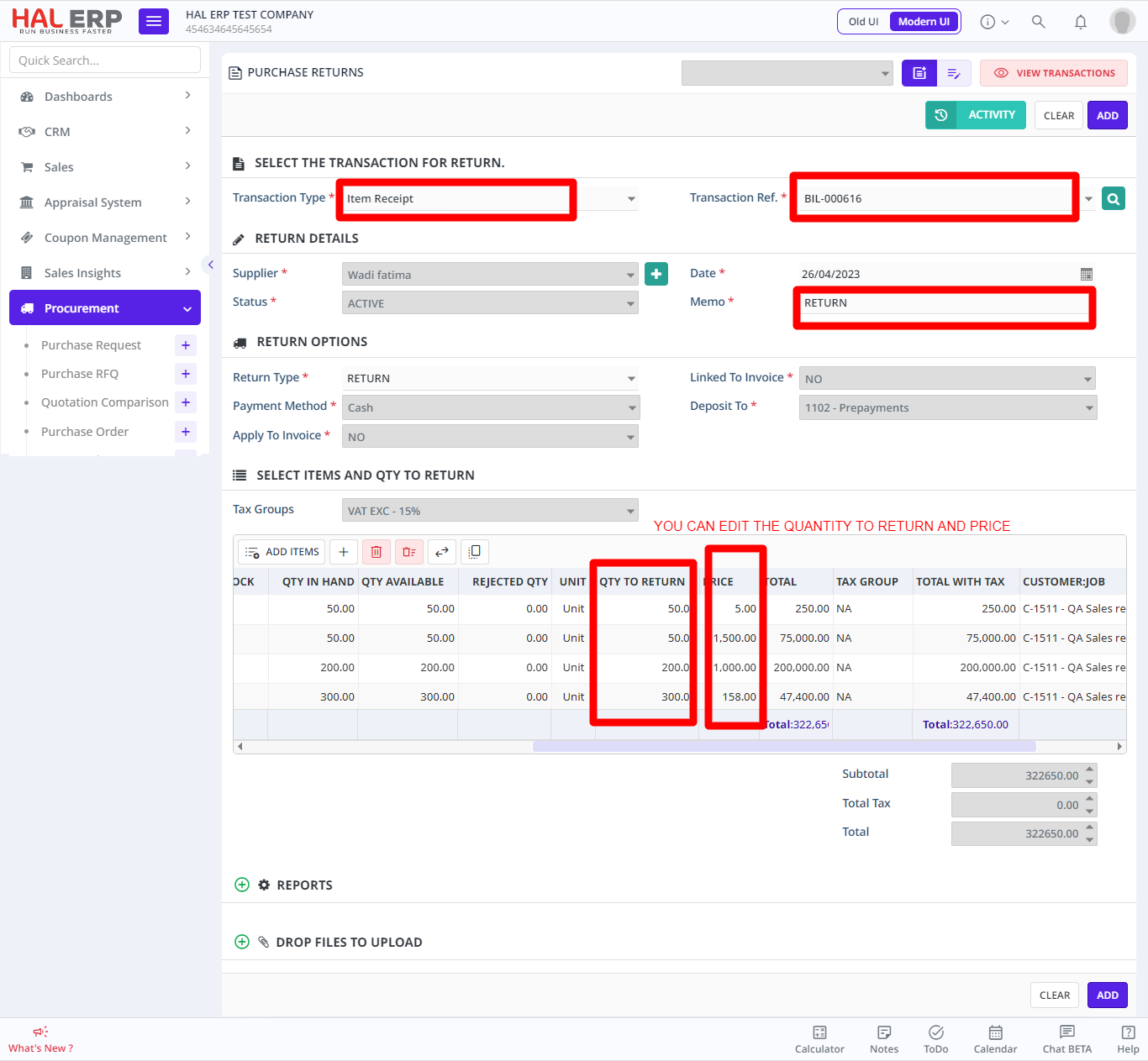
- Select the Transaction type
- Select the Transaction Ref.
- Once you select the Transaction Ref., all the Items for that particular Item Receipts will automatically populated in the Grid Below.
- Enter the Memo
- You can edit the Qty to Return and Price
Note: Since the Purchase Invoice doesn't deals with Stock, Return Stock is set to NO by default, whereas Item Receipts deals with the Stock.