
DYNAMIC FEE CONCEPT
One of the main advantage of our fee system is the Dynamic Fee. Unlike traditional system where changes to fee require you to go through the process of saving -> posting -> updating to all students, in our system, any changes made to fee configuration affects the Fee Payment immediately! There is no posting involved at all.
CONFIGURATION DRIVEN
Fee payments in our system is completely configuration driven. I.e. Fee configuration has class, child code, student category, student type, start date and end date. Depending upon the above categories the students' fee changes accordingly.
NO FEE INVOICING LIKE TRADITIONAL SYSTEM
In traditional systems, fee is paid through pre-created/posted bills. If the fee structure is modified, firstly the structure is configured, posted and after the confirmation the fee bills are generated as invoice.
In our system any changes made will be reflected immediately.
FEE CHANGE EFFECT IS IMMEDIATE
Example: Consider a scenario when the amount for Tuition Fee - 2nd quarter to the Student Category Indians and the child code 1 is to be changed.
- Goto Fee Configuration. In the below image Tuition Fee is 765.
- Double Click on the row Fee Component (Tuition Fee) which has Tuition Fee-2nd quarter for the student Category Indians and the child code 1.
- Window appears where you can change the amount as required and Click Save.

FEE CONFIGURATION
To change the fee amount, Go to Fee Configuration-> Double Click-> Any one of the Fee Component (Tuition Fee) to be configured. Window appears as in the below image. Now enter the amount 825 to be changed and save it.
After saving the amount as 825, Check the amount changed to 825 for the Tuition Fee-2nd quarter in Fee Payment Screen for the student type said above. Now to see whether the amount changed or not, Go to Fee Payment click the pay till field select the quarter. It would show the changed amount for Tuition Fee.
FEE COMPONENT SETUP
Fee Components are the different types of fee available in the Fee Collection system of the school. These are the basic Fee heads against which any collection of fee from student will be recorded. Our system lets you to create these Fee Components according to the Fee system followed in the school making it as an easier option of collecting different type of fee managed by single department without confusion.
Fee components created can be configured with different features like late fine, start date, end date, student type making it more simpler for the fee collection in charge.
For example Tuition Fee is a Fee Component against which tuition fee for the students are collected. Fee configuration screen helps to add more features like how much tuition fee for a student studying in class 10 or 4. And how much tuition for a new student or old student, etc...
To set up the Fee Component,
- Goto **Fee -->Fee Components Setup. A window appears as shown below.
- Click + icon to add the fee component as shown.
- Enter the Fee Head Name and Description under Fee Head Details.
- Select the Fee Properties like Fee Type, Has Late Fine and Active Status of the Fee Head.
- Click on Add button to create the new Fee Component

LINKING TO ACCOUNTS
To link the Fee Head to the accounts, Select Ledger Account dropdown and select the account corresponding to the Fee Head being created.
All the fee collected for this Fee head in future would be posted to the account selected in the Select Ledger Account in this screen.

The newly created Fee Component would be shown in the Fee Component Reports as shown below.

OPTION TO LIMIT TO NEW ADMISSION ONLY
As mentioned earlier, many features can be added to a Fee Component using Fee Configuration Screen.
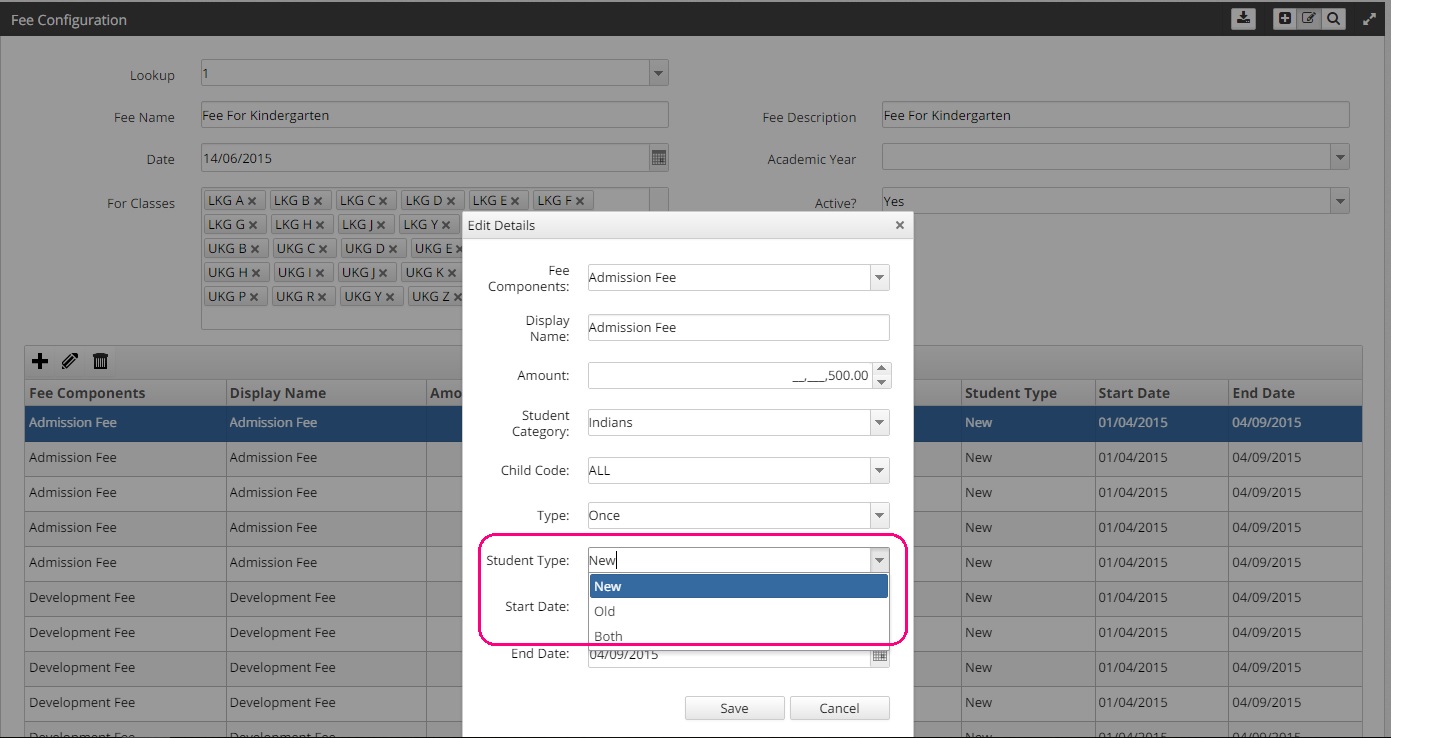
While configuring a fee, the Fee Components are added to the Grid by clicking on + icon. A dialog box appears allowing us to change the options of the Fee Components.
For an existing Fee Component, select the row and click on Edit Icon. Same dialog box appears allowing us to change the options of the Fee Components.
If a Student Type is selected as New, this Fee Component will be shown in Fee Payment Screen only for the new student.
LATE FINE
Late fine will be collected from the students who have failed to pay the fee on or before due date.The late fine amount will be automatically calculated and shown as per the criteria of the student.
The Start Date and End Date of the Fee component is set in the Grid while configuring the fee. Accordingly the late fine will be automatically calculated if the student pays the fee beyond the End Date.
CATEGORIES/GROUPS TO WHICH DIFFERENT FEE CAN BE ASSIGNED
FOR CLASS SECTION
Fee Configuration is made easy with our system because classes or groups having same type of fee structure can be grouped together using multi select ability of the For Classes field. Thus eliminating the need to configure the fee for every class or group separately which is time consuming.
For example, if all the Pre-Primary classes have same fee structure, then all the classes of the Pre-Primary can be grouped under one name with same fee components assigned to it.
In the example shown below, Fee for IX** is selected from the Fee Configuration Reports.

The Fee for IX is the Group/Category name.
All the sections of the Class IX is selected in the For Classes field. This indicates that all the classes selected in this field has the same Fee Configuration or Fee structure.
Any other class can be added to this group from the drop down box when needed. Also any class that has different fee structure group can be deleted from this group.

TRANSPORT FEE
- Transport fee is separately configured for all the classes.
- Transport fee has different zones.
- Depending upon the zones, amount will vary.
- It is applicable for both old and new students.


CHILD CODE
Child code is the number given to siblings studying in the school.
Example: As shown in the image below Student name is Makwana. She has sibling named Anushka Makwana already studying in the school. Anushka's child code is 1 as she has joined the school before Makwana. And Makwana's child code Makwana's child code is 2.

When fee is configured, Fee Components are assigned for a group keeping Child Code also as criteria.
For example, Development Fee is set for Student Category Indians, Staff, Non Indians and Embassy Staff when the child code is 1, 2 as well as 3 as shown in the screenshot below.

OLD AND NEW OR BOTH OLD AND NEW STUDENTS
Students fee structure is also categorized by the Student Type i.e. New, Old or Both. By selecting the student type of a Fee Component while Fee Configuration, the fee applicable to new students only or old students only or for both can be set.

START DATE AND END DATE
In Fee Configuration, the Fee component amount has the start date and end date. Start date is nothing but the date from which fee can be paid from which date and the end date is the last date to pay the fees.

LINKING TO ACADEMIC YEAR
The Fee Configuration for the school is required to be done for every Academic Year.
The Fee configuration shown below is for the Academic Year 2016-2017 only. For a new academic year, fresh configuration should be done to make the fee collection process easy.
