What is Job Costing?
Job cost tracking is an extremely important part of a contractor's business. Job costing means tracking the expenses for a job and then comparing those expenses to the job's revenue. This tells you which jobs are making money and which are not.
Why is job costing so important?
With job costing tools you can easily see exactly how much money you spent and made on each of your jobs. You won't have to wait until you do your taxes at the end of the year to see how your business is doing. Plus, you'll be able to see which type of jobs are winners and which are losers thus enabling you to take right decision on which job to take over in the future.
How to use Job Costing
Set up a Customer:Job for each of your jobs.
Even if you have only one job for a particular customer for now, it's a good idea to set up an individual job for that customer. This allows you to keep track of your income and expenses on a job-by-job basis, and it can simplify your accounts if you add another job for that customer in the future.
This will also help you track all jobs for a given customer which will in turn give you a better picture of your operation activities. This will also simplify your day to day job allocations to any income/expense incurred for and against that job
Every job needs a customer,
To create a new customer, go to Customer -> Customer List -> Create New -> Enter Details and SaveOnce a customer is created, go to Customer -> Customer Jobs -> Create New to create a new Job for any customer.
Refer the screenshot below to enter the details in Customer Jobs screen.
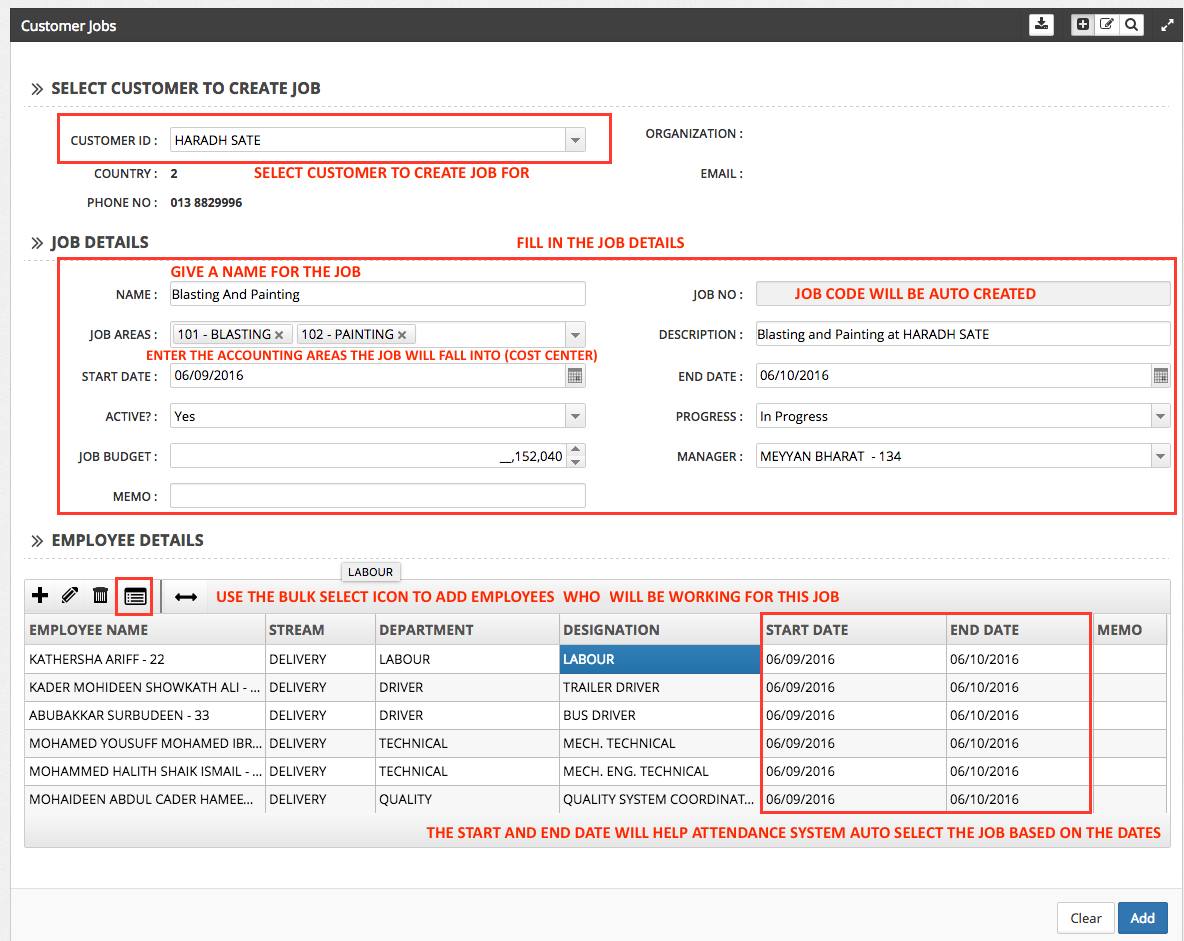
Once a job has been created, a new code is assigned to it.
Financial Centers :
Financial Centers are like Tracking Classes or your Operation Verticals or they can be the list of income generating activities your business is involved into. You can assign 1 or more Financial Centers for a given job.
Financial Centers help you to analyse profit and loss at a broader level as they cut across jobs. Eg. you could see how much income your company is making at Painting or Construction, or how much do you make from sales.
Financial Centers give you a much wider room for analysing your income and expense.
Linking Financial Centers to your job will make subsequent entries easy for you.
To get a complete job cost picture, make sure to assign all your expenses to jobs. You just need to make sure you select the appropriate job in the Customer:Job column whenever you enter any income or expense or timesheet.
Note: Customer Job andFinancial Centers can be selected at the Line level only if they are left as NA at the top level. If a Customer Job or Financial Center is set at the header level, then those would be copied down to the item level when the entry is saved.
Job Costing Income
To Job Cost income, you just need to make sure that every income entry that is posted to the system is assigned to the appropriate Job.
Screens from where job and Financial Center can be assigned for income are.
- Record Income
- Record Receivables
- Invoice
- Sales Receipts
- Journal Entry - For any corrections
Job Costing Expense
Just like with income, we would need to job cost the expense as well. This is done by assigning the appropriate job and Financial Center whenever an expense is recorded.
Screens form where job and financial centers can be assigned for expense are
- Purchase Order - For service/non inventory items Only
- Item Receipts - For service/non inventory items Only
- Purchase Issue - For all project consumables inventory items
- Sales Returns
- Record Expense
- Record Bills Payable
- Record Petty Expense
- Journal Entry - For any corrections
- Delivery Note.
Some key points to note for Purchase Order and Item Receipts:
- For Service/Charges/Non Inventory Items: Expense on service/non inventory items is incurred when Entry is created in the Purchase Invoice screen. However you can still link job to the Purchase Order itself as this will make it easy when the actual invoice is created, all the details form the purchase order are copied to the Purchase Invoice.
- For Inventory/Consumable Items: Expense for Inventory and Consumable items only occur when they are actually consumed (in the case of consumables) or sold/delivered ( in the case of inventory items). Therefore job and financial center needs to be selected every time an items is consumed for a job using Purchase Issue or delivered using Delivery Note or Sold via Invoice/Sales Receipts
Therefore, for job costing to be effective, you would need to associate the job and Financial Center in each of the Income and Expense screens mentioned above
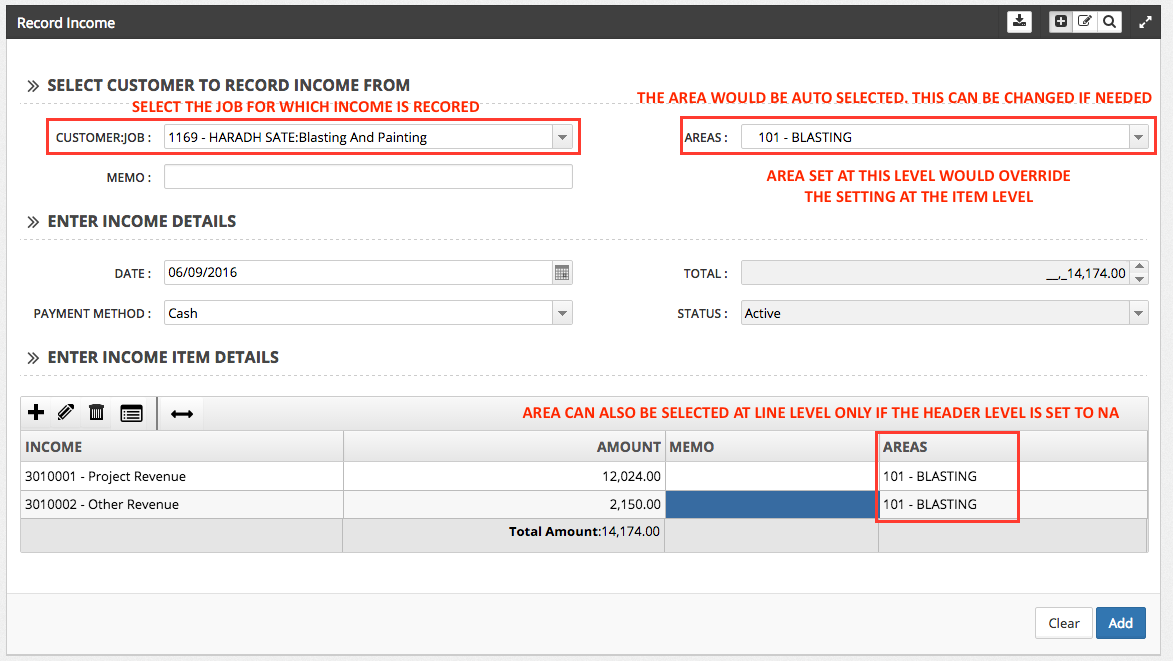
In each of these screen, Look for the Customer:Job field. This dropdown will let you select the job for which the income is being recorded. If the job has only 1 Financial Center linked, then that financial center would be auto selected for you automatically in the Financial Center's dropdown. If the job has more than 1 Financial Centre linked, in such cases, by default the first financial center is selected. You can feel free to change it and link it to the most appropriate one.
Eg. Record Income.
The following example shows a Record Income in which the Customer:Job is selected at the top level and Financial Center is auto selected which can be change if needed.