
Any form of income which cannot be recorded in any other dedicated screens (like Fee Payment, Invoice, Customer Advance, etc) can be recorded using the Record Income Screen.
Any income recorded would need to be deposited to an appropriate account using the Payments Deposited screen.
How to create Record Income?
Payments-->Record Income-->Create New
To Record Income
- Select the Customer - If you dont deal with a customer, then create a default customer
- Select accounting area if applicable
- Enter the income details
- Use the Bulk Select icon to search for the respective income accounts against which you want to record income and add them to the grid
- Enter the amount against the heads
- Select Job and Area if applicable
- Click on Add button to Save.
- To deposit this amount to a Bank/Cash account, refer to the Deposit Payment document
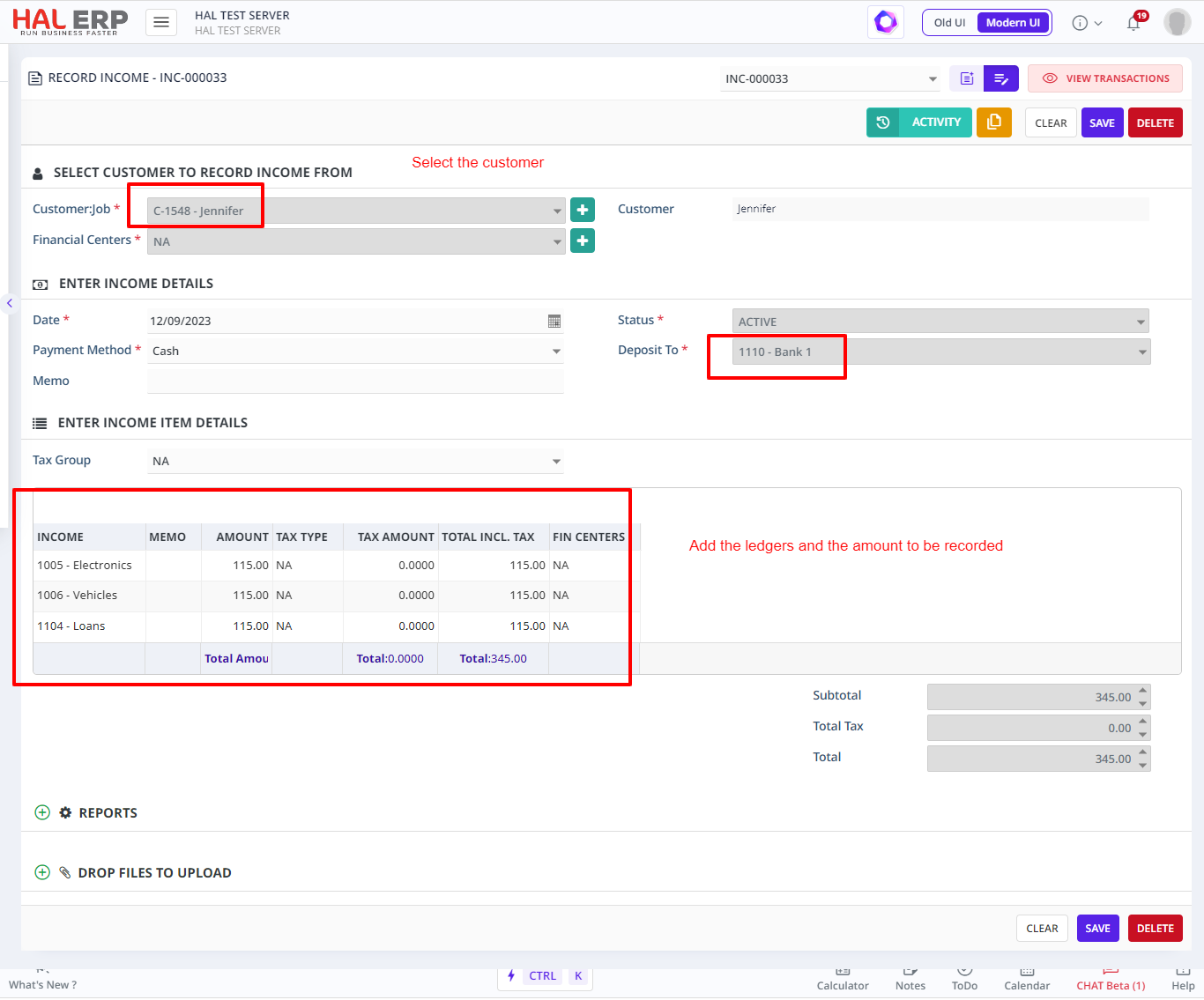
This will create the income Entry and ledgers would be updated
Any income recorded would need to be deposited to an appropriate account using the Payments Deposited screen.
Depositing Income
- Go to Payments -> Deposit Payment -> Create New
- Select the account you want to deposit this income to in the Deposit To dropdown
- In the grid below, click on the Bulk Select icon and select and add the Income entry you just created.
- Click on save.
- This will now deposit that income entry to the Deposit To account you selected and also update that accounts balance
For more details refer to the Deposit Payment document.