Setting up your Company at **++HAL ERP++ ** - Bookkeepers Guide
1. Company Details Setup
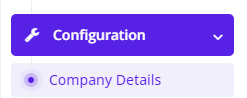
To set up your company details, Click Configuration -> Company Details
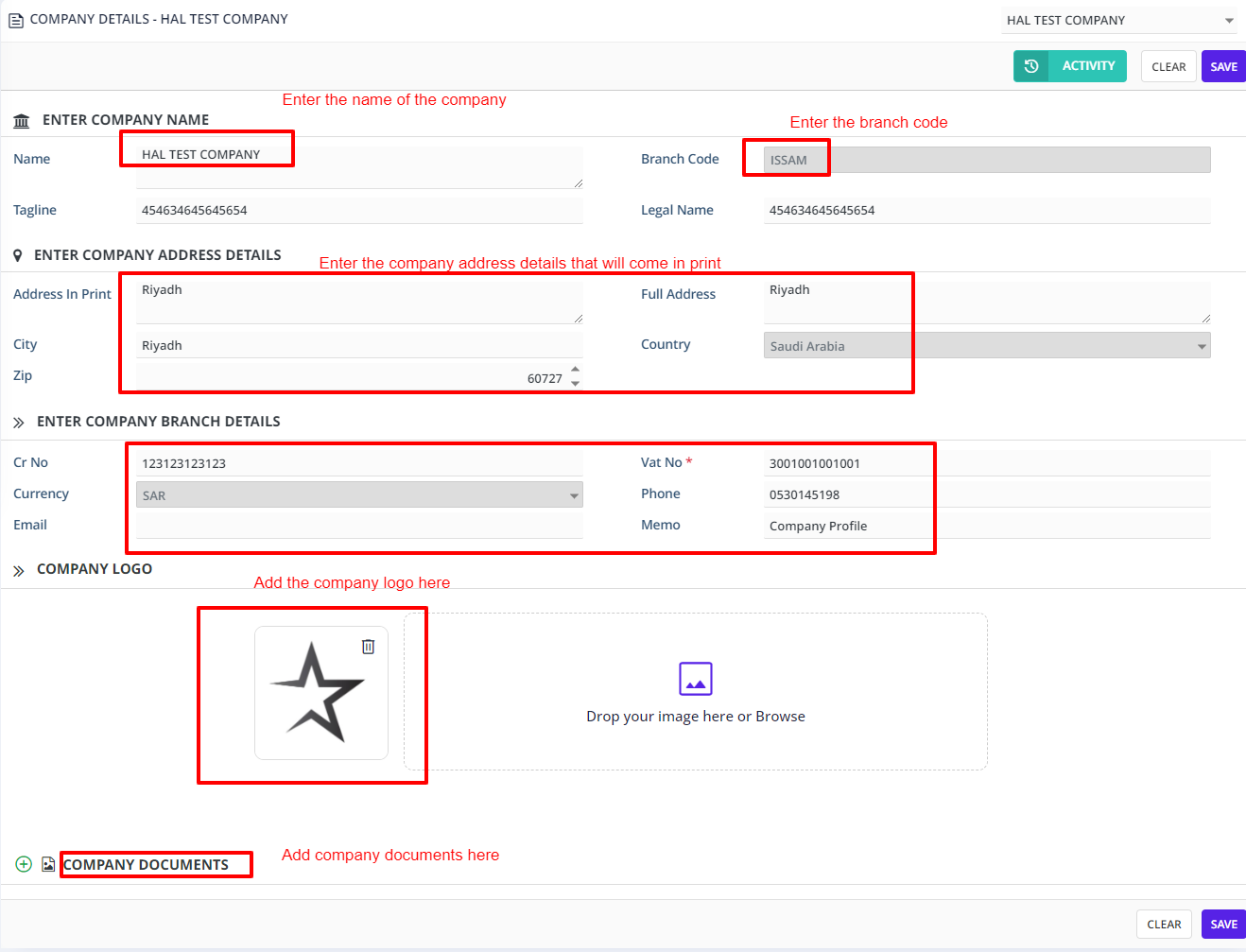
Once the details are entered, Click SAVE
Note: The Data entered in fields such as NAME OF THE COMPANY, ADDRESS IN PRINT, CITY, POSTCODE, CR NO, VAT NO, COUNTRY, CURRENCY AND LOGO will be fetched and used in the prints whenever it is required.
2. Setup Opening Balance Equity Account
Check if there is an Opening Balance Equity account available in the Ledger Account Setup report, If it is there, then you can skip the following steps.
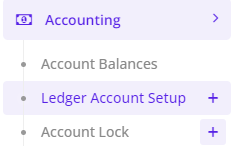
To Create a new Ledger Account, Click Accounting -> Ledger Account Setup, Click Create New
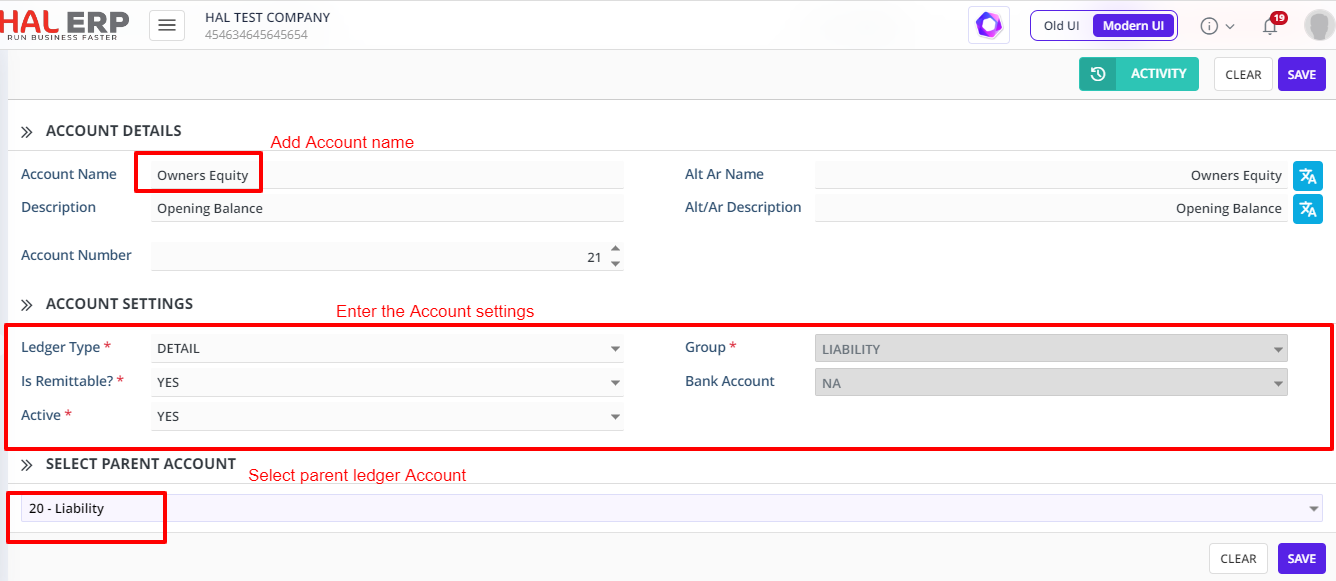
Once the details are entered, Click SAVE
3. Inventory
3.a Creating An Inventory Type Item
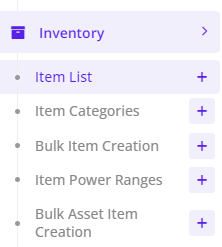
To Create a new Inventory Item, Click Inventory -> Item List, Click Create New
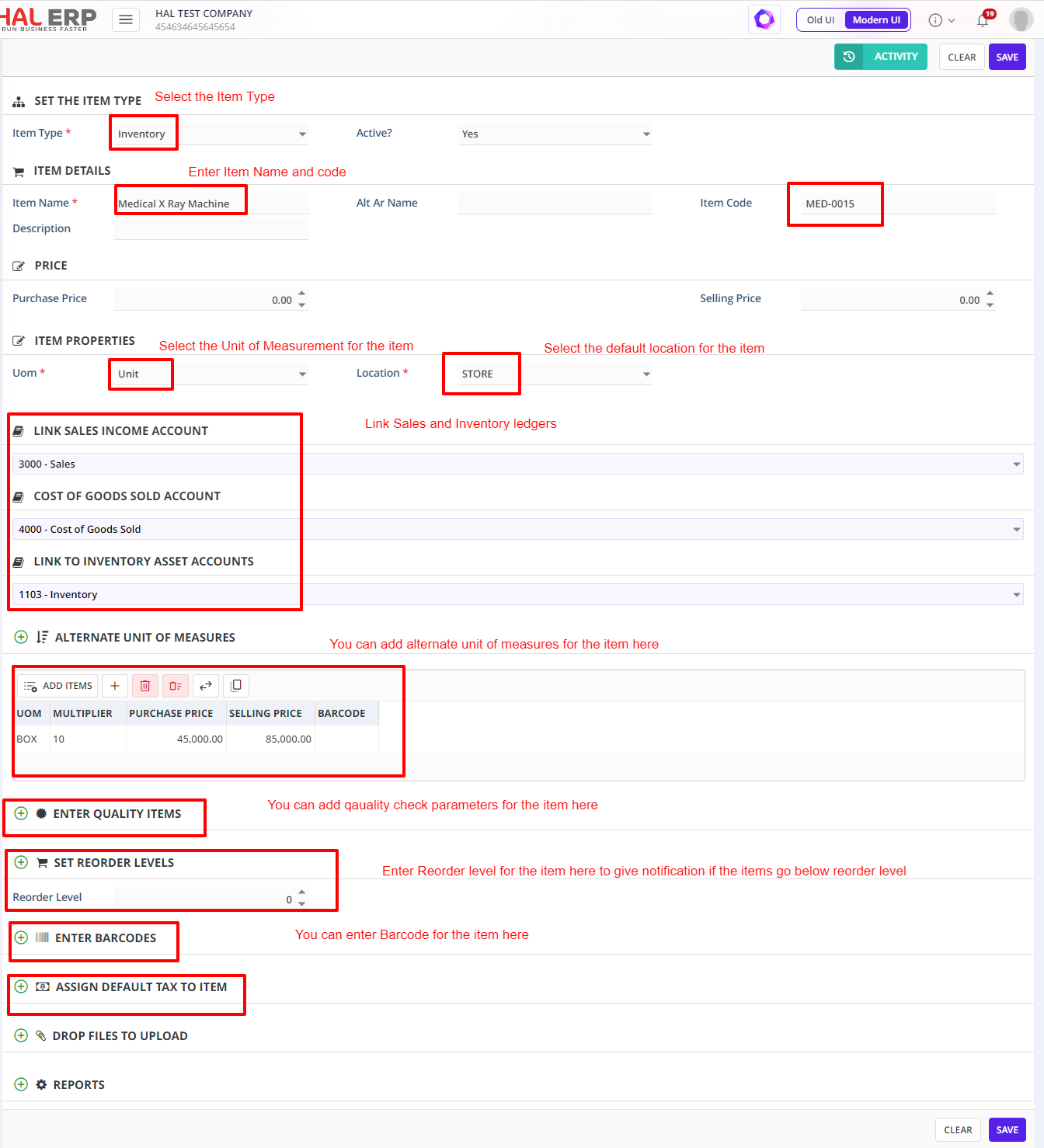
Once the details are entered, Click ADD
3.b Bulk Item creation
To create inventory items in bulk, click Inventory>> Bulk Item creation
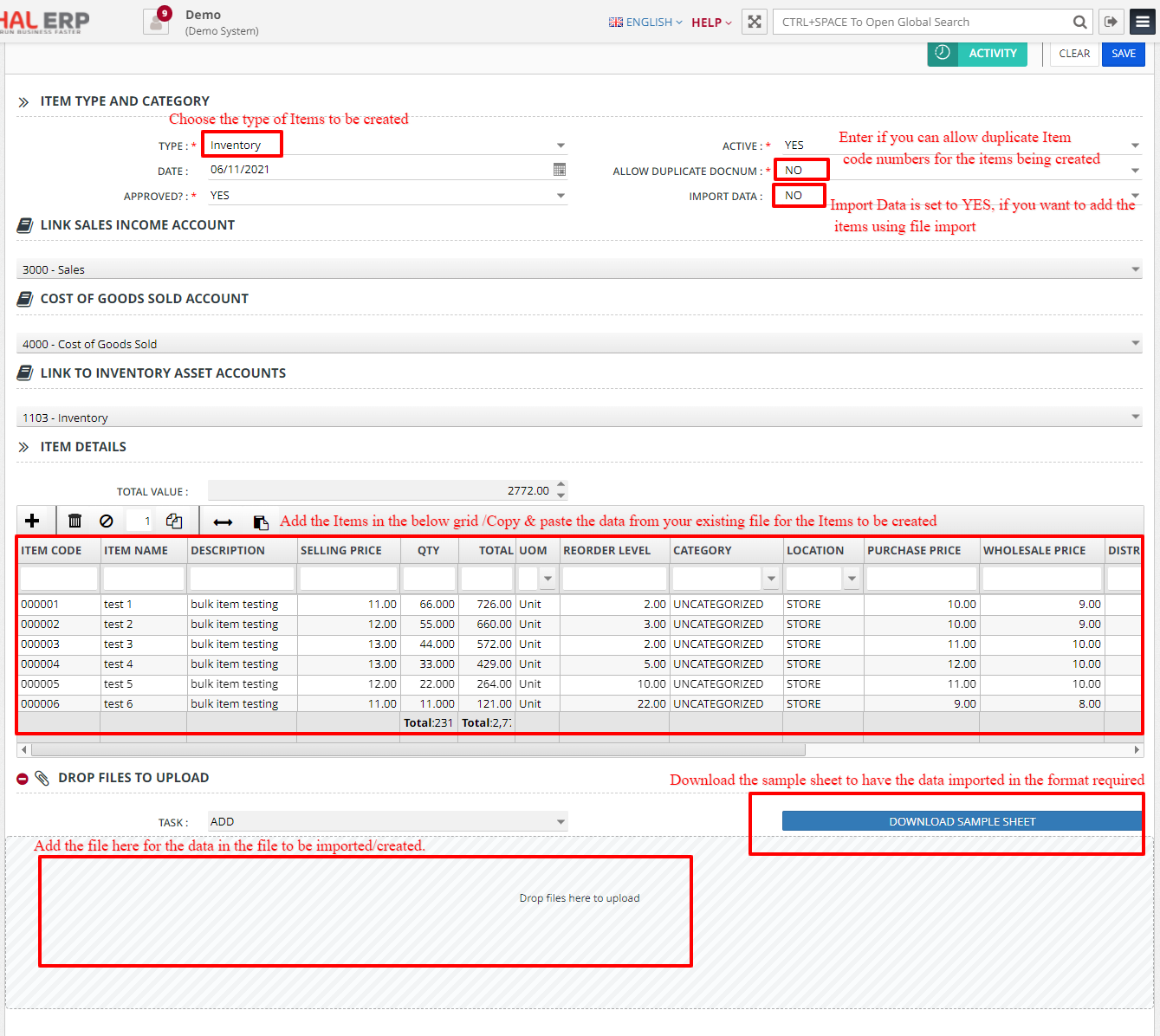
Once the details are entered, click on ADD to create the Items.
3.c Loading Inventory Stock In Hand
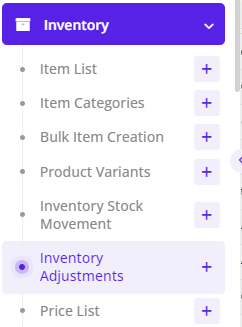
To load stock in hand in Inventory, Click Inventory -> Inventory Adjustment, Click Create New
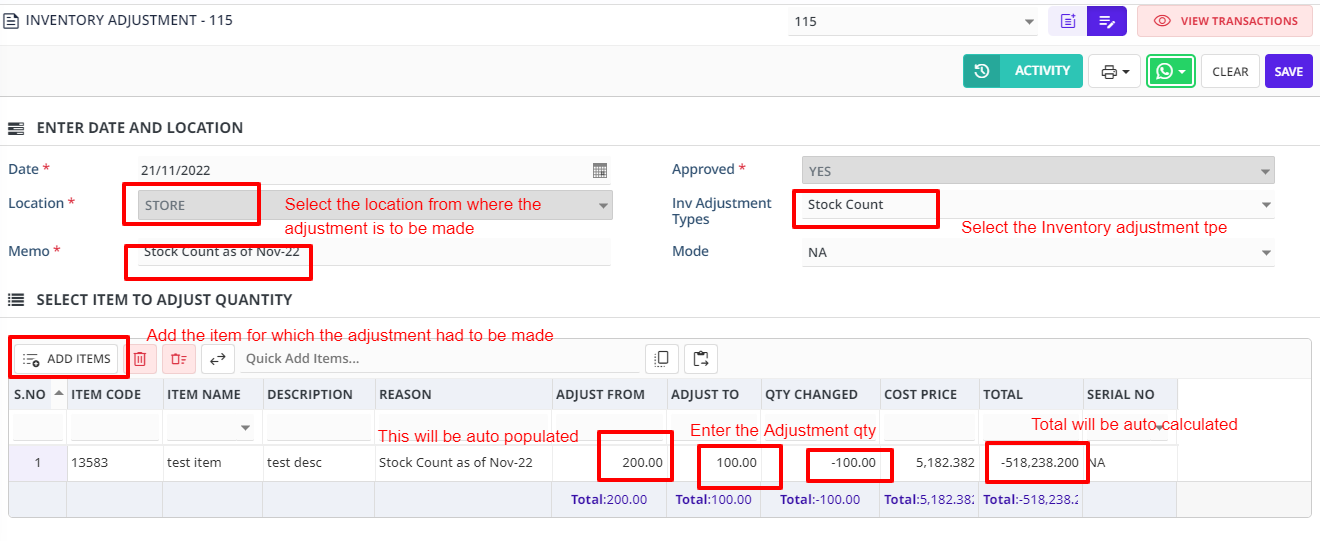
Once the details are entered, click ADD
**++Note:++ **
-
In the Cost Price Column, Enter the Cost/Unit Price Per Item, Not for the Whole Quantity.
- This Cost price will be used at the time of Selling.
- When Inventory Adjustment is done, Accounting will not happen. Follow the Below Steps to Load the Inventory Asset Value
3.d Loading Inventory Asset Value In Accounting
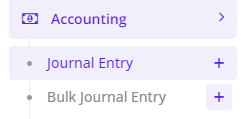
To load Asset Value of your current Inventory Stock in Hand, Click Accounting -> Journal Entry, Click Create New
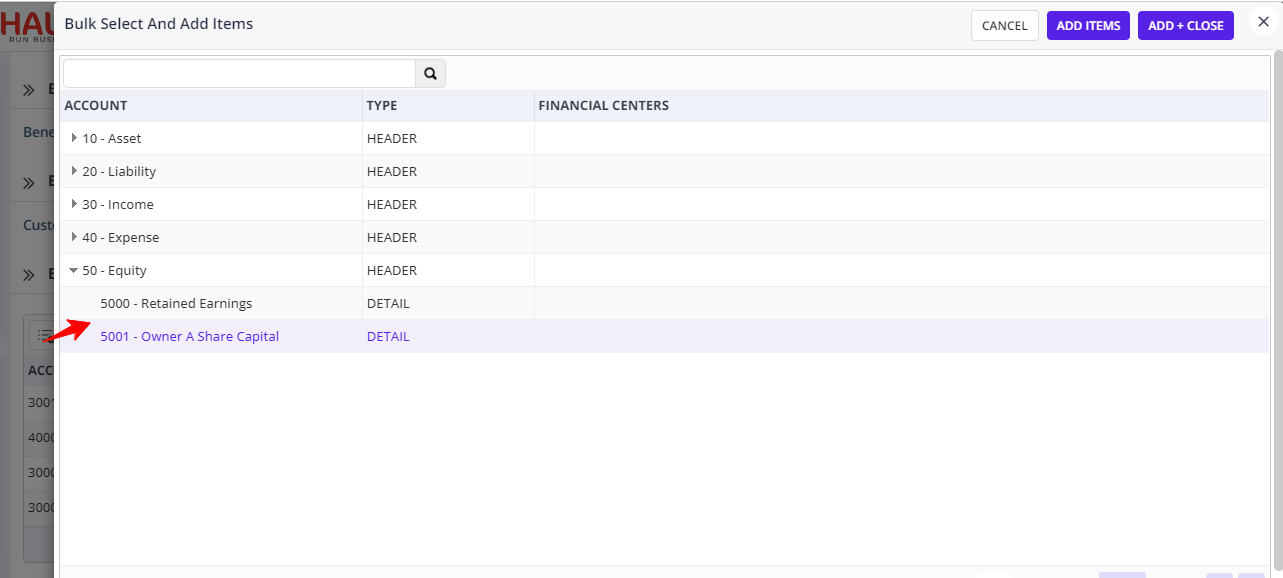
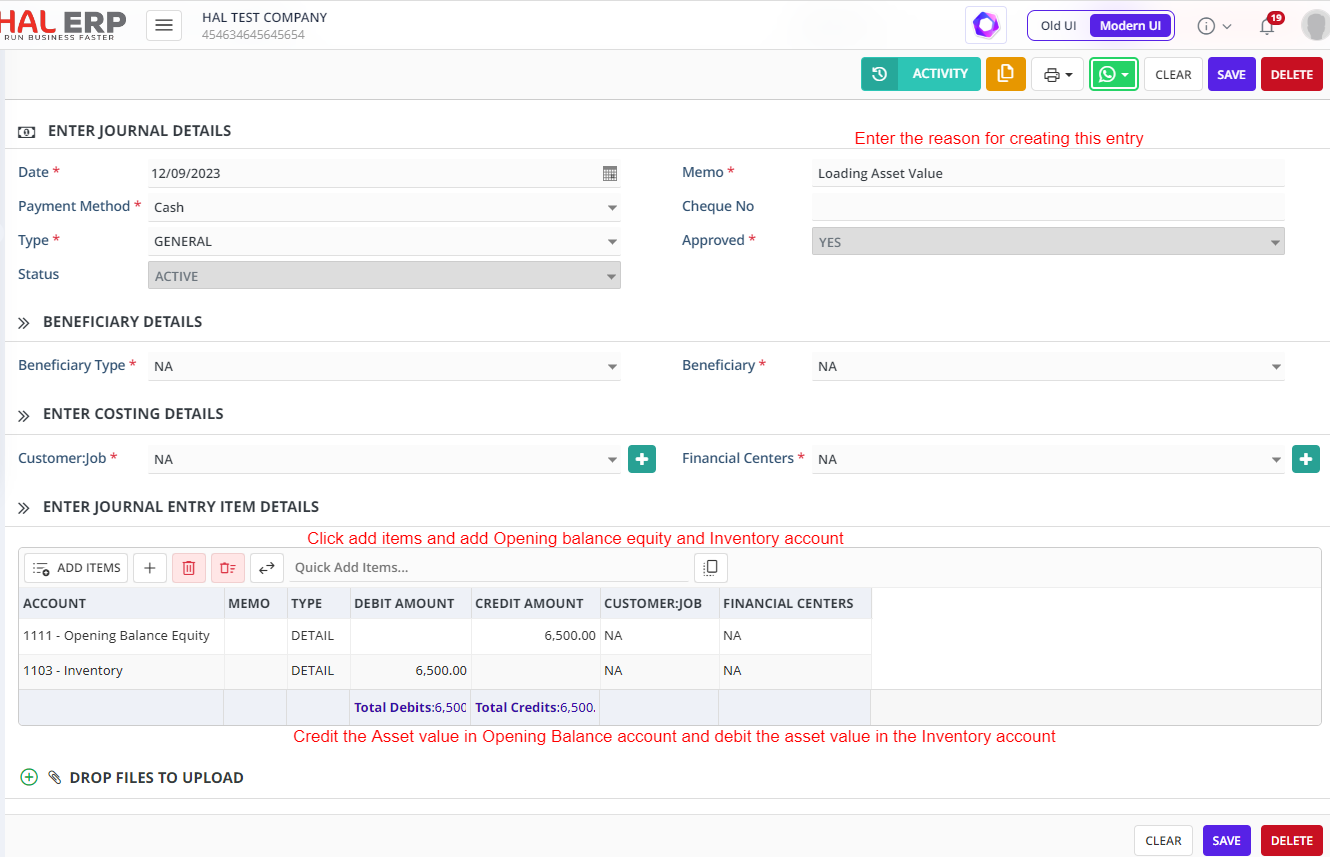
Once the details are entered, Click Save
To load value for multiple accounts, click Accounting>> Bulk Journal Entry
4. Setting Up Customers
4.a Creating a New Customer
To Create a New Customer, Click Customer -> Customer List, Click Create New
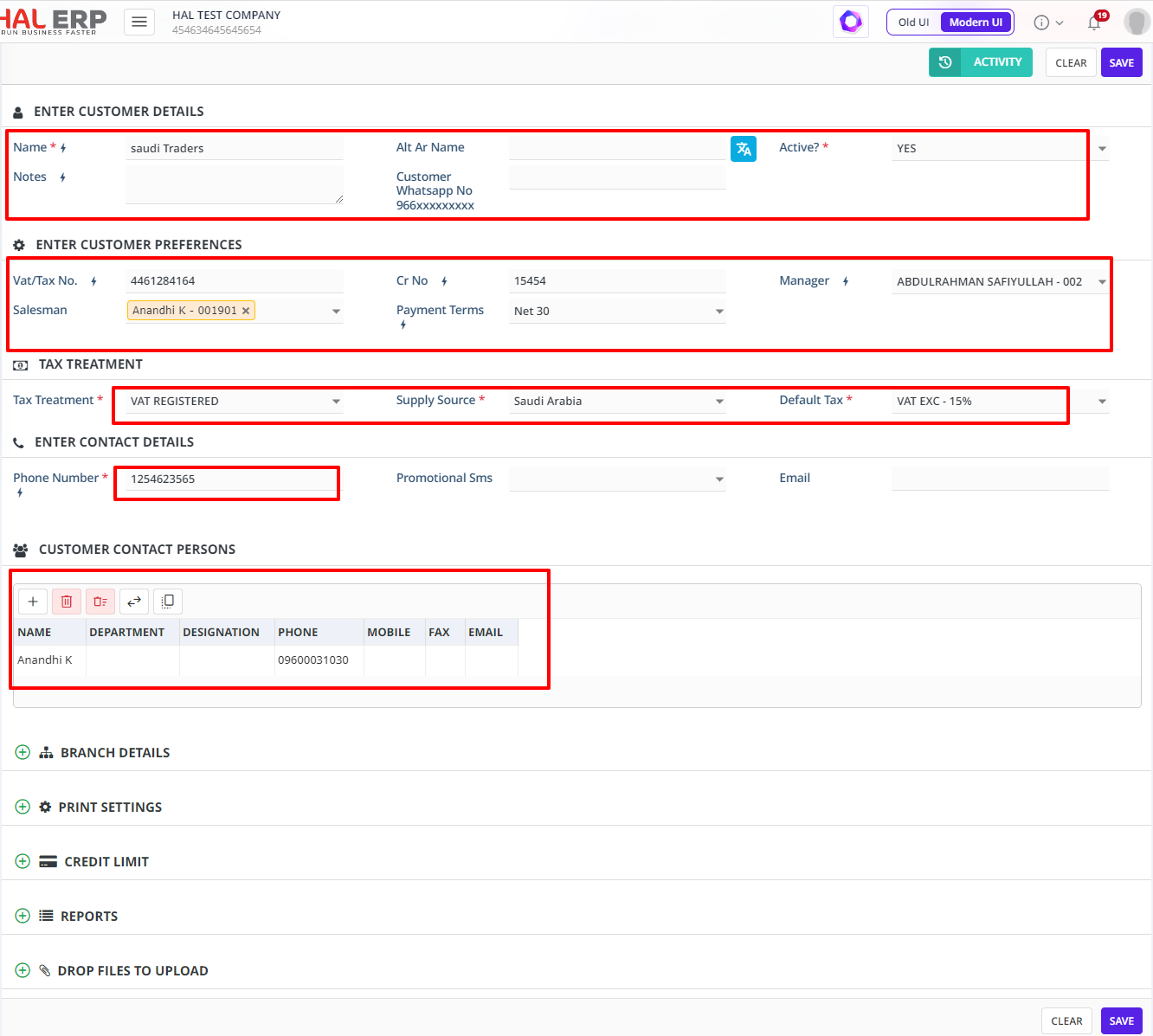
Once the details are entered, Click ADD button to save it.
4.b Bulk Customer Creation
To add customers in bulk, click Customer>> Bulk customer Creation
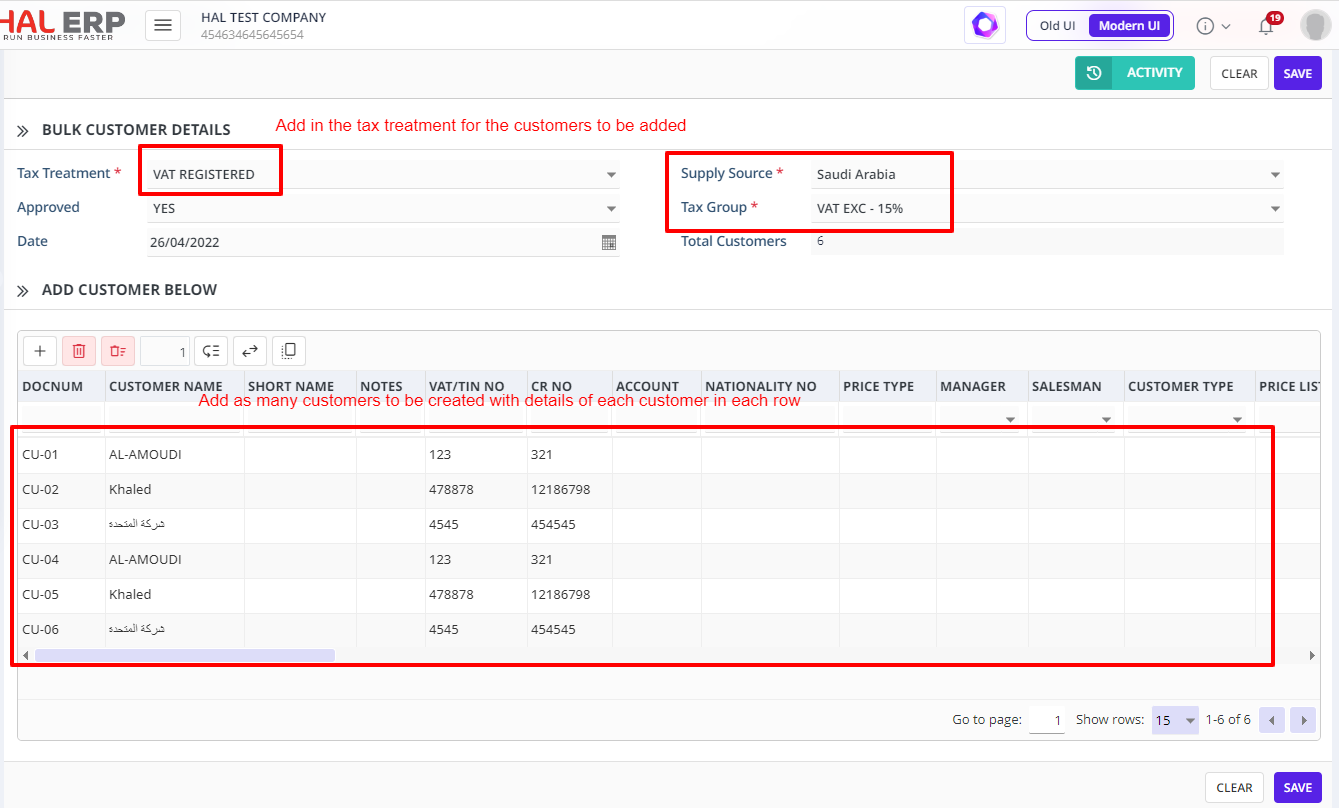
Once the details are entered, click on ADD to create the customers.
5. Entering Customer Opening Balances
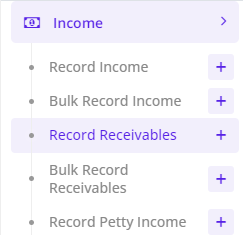
To Enter Customer Opening Balance, Click Income -> Record Receivables, Click Create New
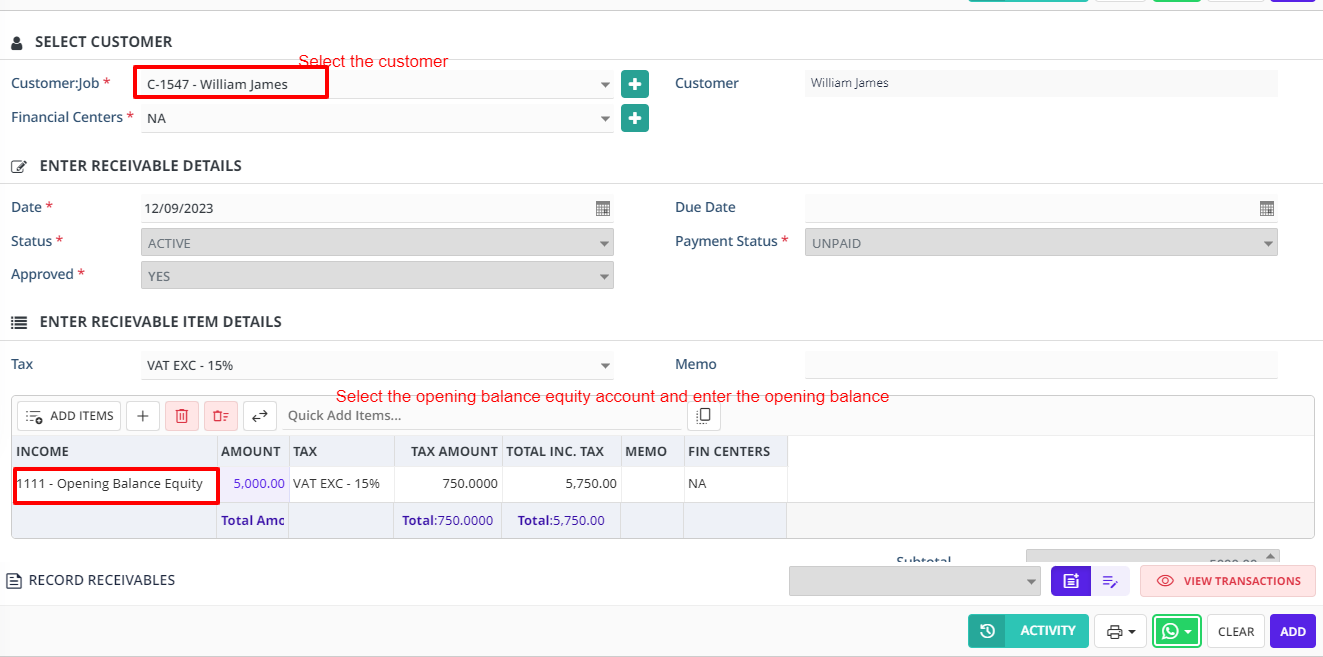
Once the details are entered, click ADD
Note: If Opening Balance Equity Ledger is not found in ADD ITEMS, then you can create it using the Ledger Account Setup Screen as described above.
To enter the opening balance of multiple customers, click Income>> Bulk Record Receivables.
6. Vendor/Supplier Details Setup
Creating a New Vendor/Supplier
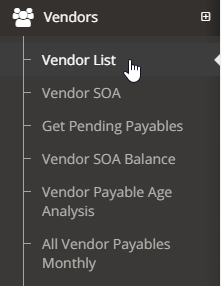
To Create a New vendor, Click Vendors -> Vendor List, Click Create New
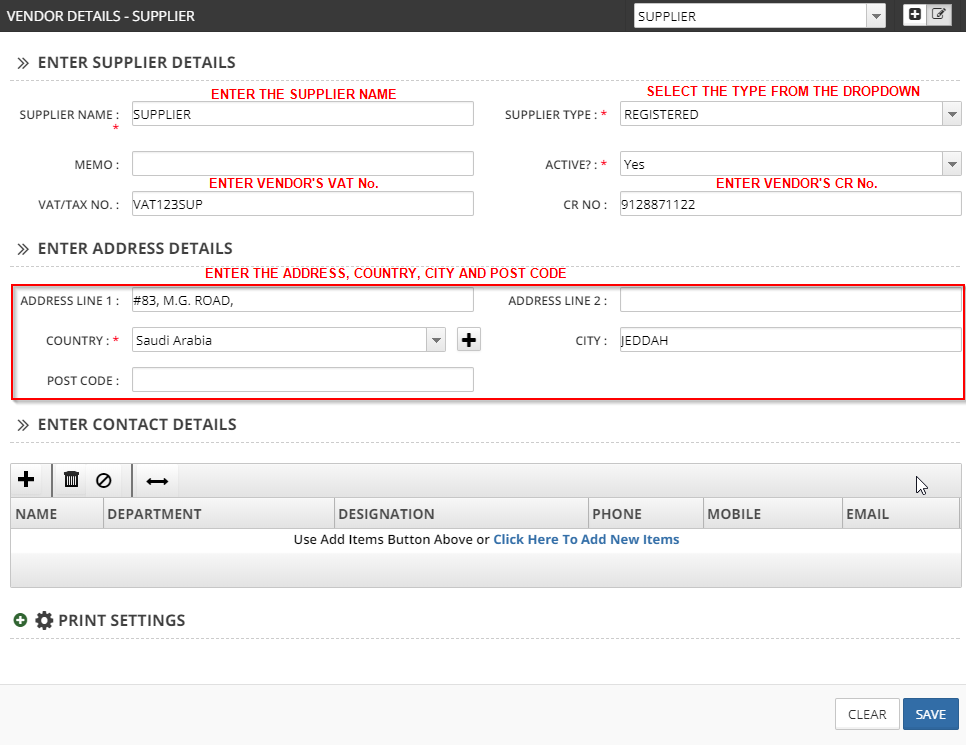
Once the details are entered, Click SAVE
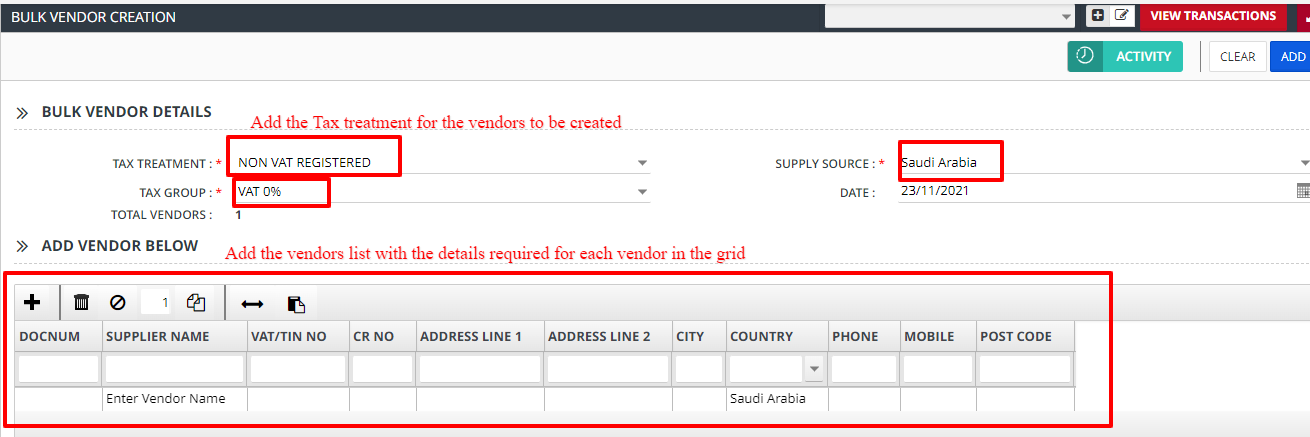
To create vendors in bulk, click Vendors>> Bulk Vendor Creation
7. Entering Vendor Opening Balances
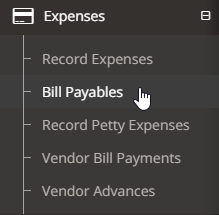
To Enter Vendor Opening Balance, Click Expenses -> Bill Payables -> Create New
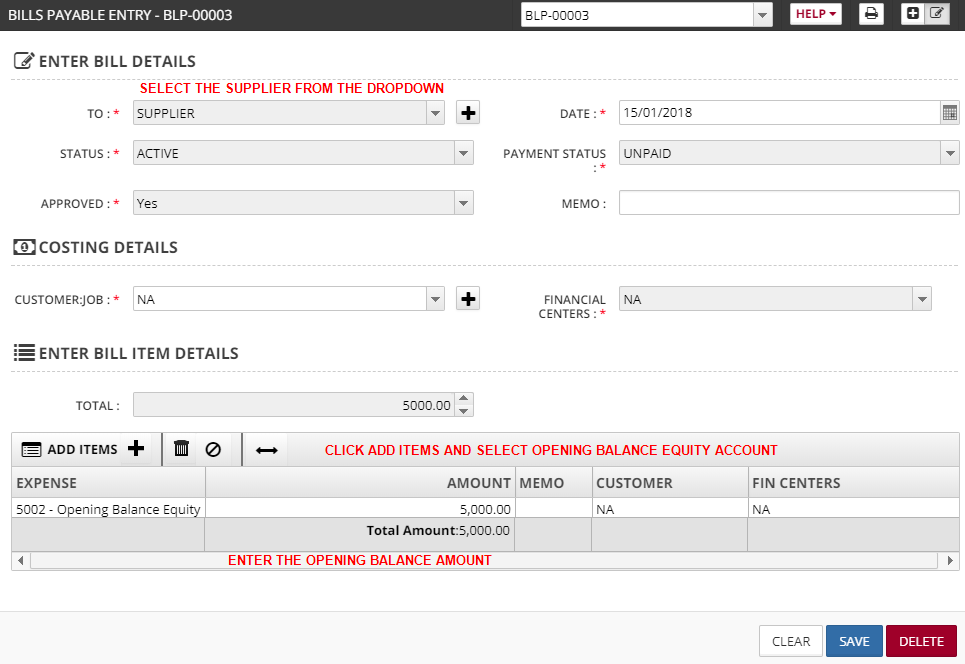
Once the details are entered, click ADD
Note: If Opening Balance Equity Ledger is not found in ADD ITEMS, then you can create it using the Ledger Account Setup Screen as described above.
To enter vendor opening balance for multiple vendors, click on Expenses>> Bulk Bills Payable
8. Entering Opening Balance in Bank / Cash Accounts
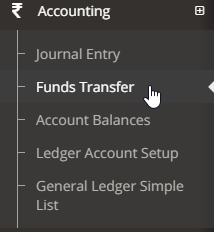
To Enter opening Balance in Bank / Cash Accounts, Click Accounting -> Fund Transfer, Click Create New
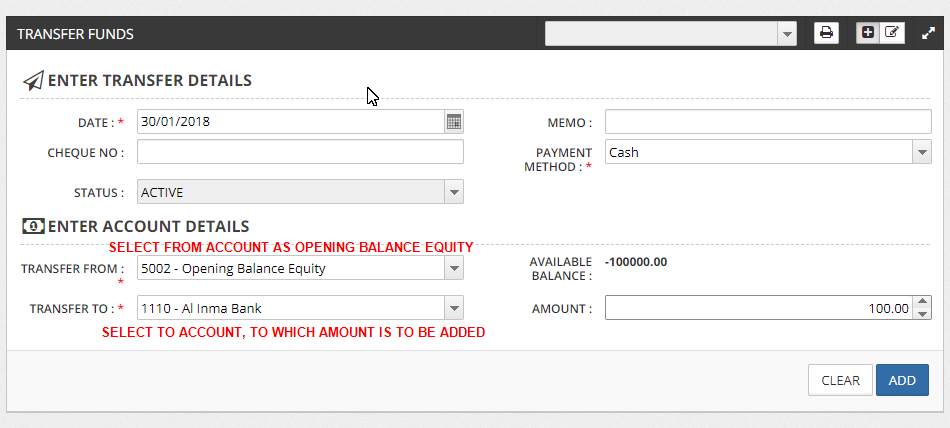
Once the details are entered, Click Save.
9. Tax Returns Report
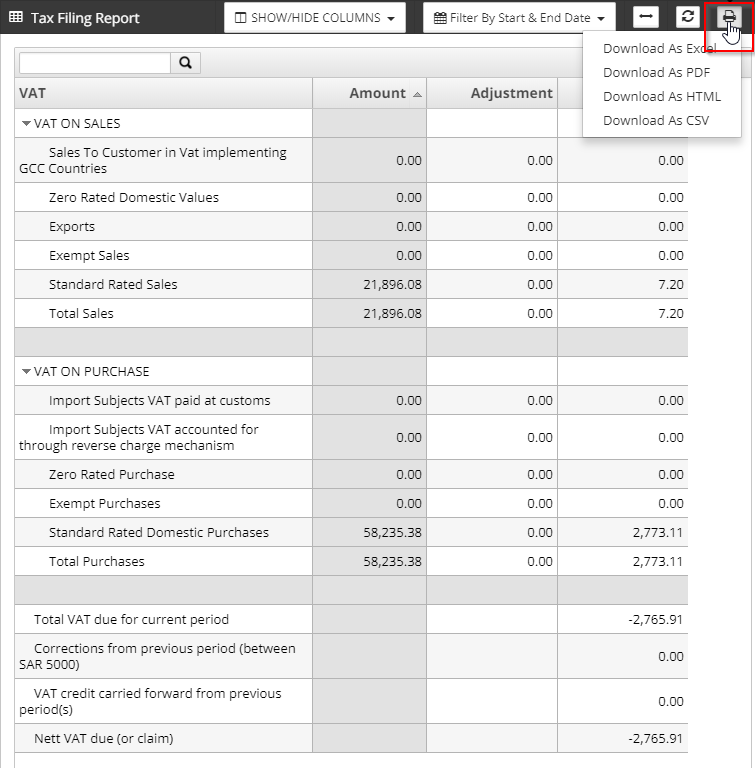
To view Tax Returns Report, Click Tax -> Tax Filing Report
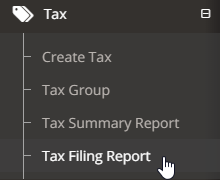
You can download this report in different formats, using the print icon on top right